Downloading Creator-Uploaded Files
Note: If you joined GRIN on January 23, 2023, or later, Campaigns will not be available for your account and have been replaced by Activations. You can use Activations to manage and organize your creator marketing programs.
For more information, check out our help articles.
What You'll Need
A new or existing Campaign.
Creators who have submitted content files in your Campaign.
How to Do It
Once you've created your campaign you're able to track your campaign progress which involves the content that is both uploaded by your creators and pulled in automatically.
In this guide, you will learn how to locate the uploaded creator files and how to download the files to be used outside of GRIN.
How to View and Download Creator Uploaded Files
Creator files are content that your creators have uploaded manually on their unique Live URL. Uploaded files can be content submitted for approval within General Upload before posting on social media or content meant to be used by the brand solely.
1. Click Program > Campaigns.
2. Click the Campaign Work Room icon.
3. Click on the Progress tab.
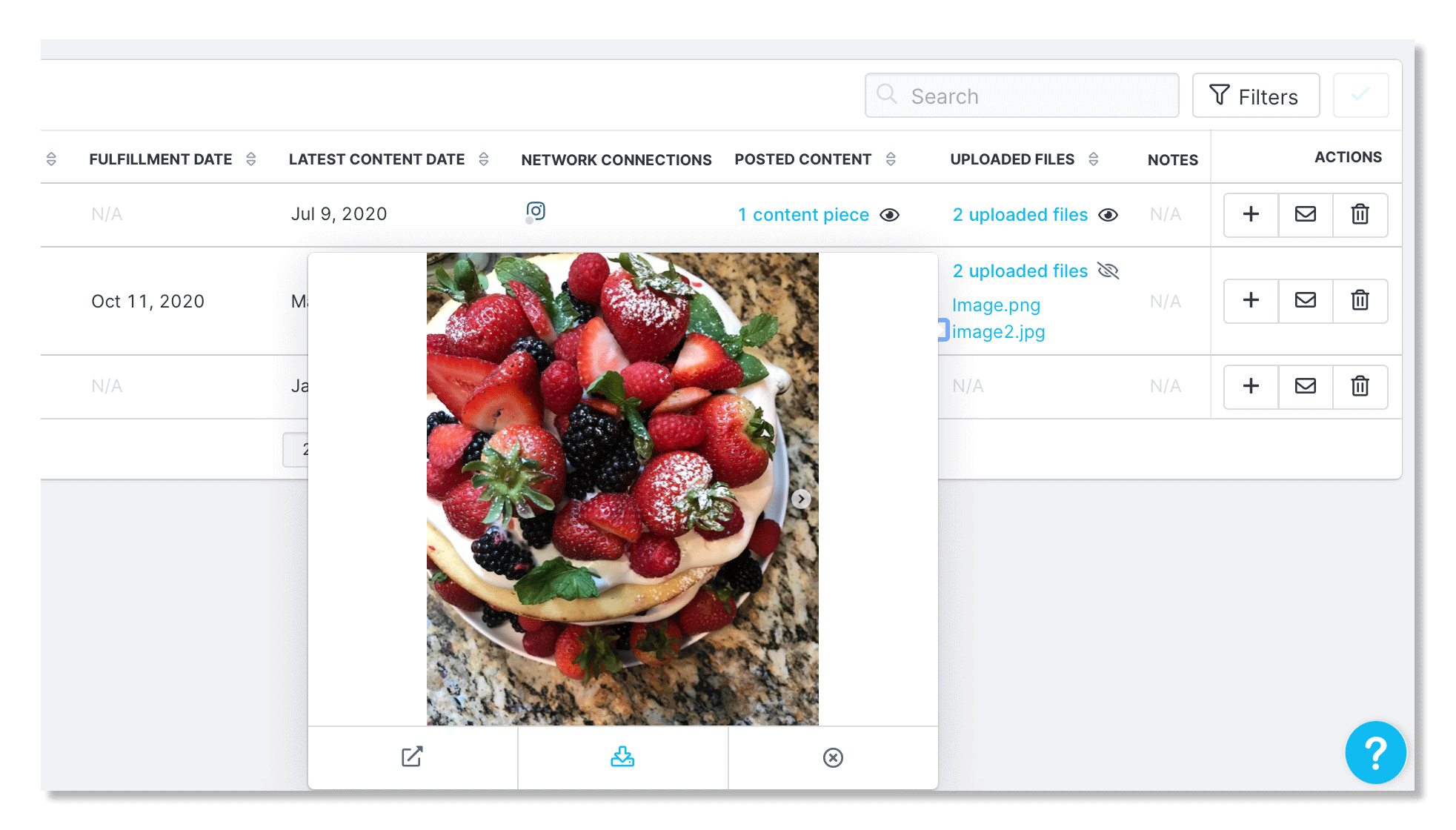
4. In the Uploaded Files column, click the eye icon to view all the content that has been uploaded by your creator.
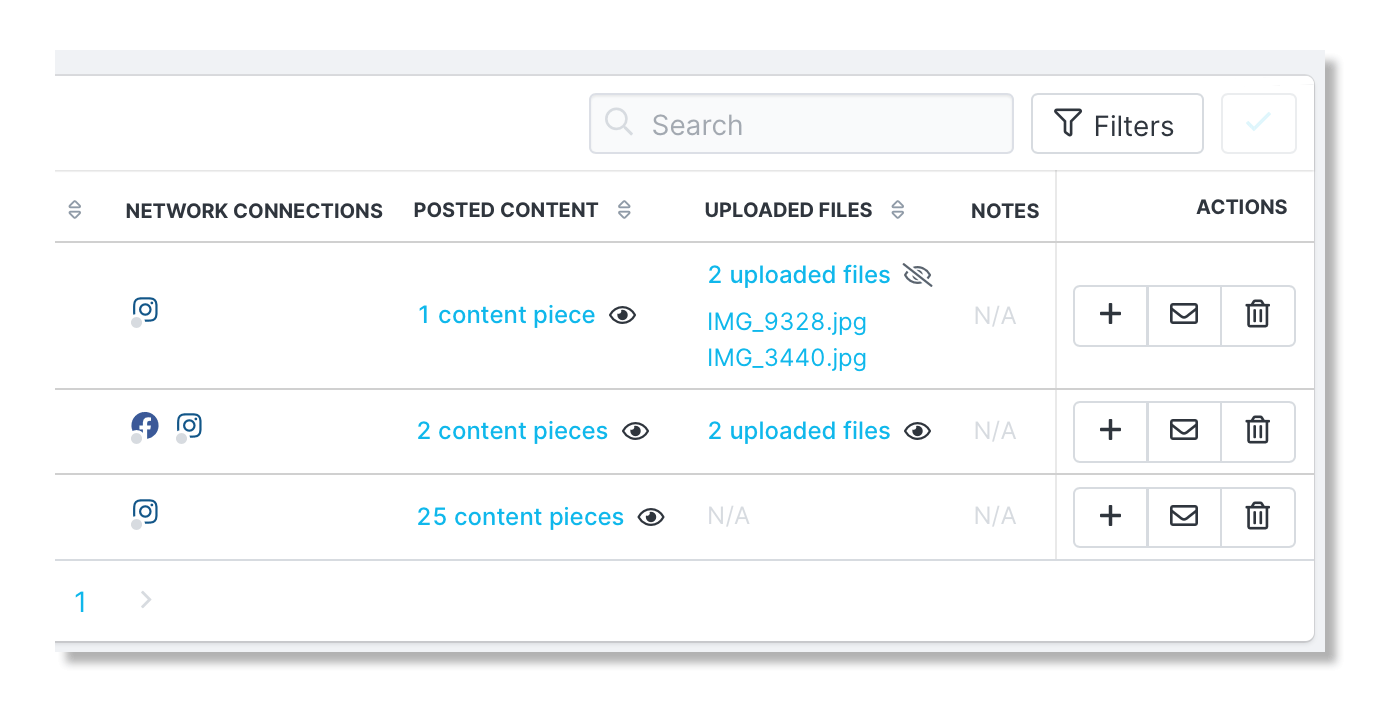
5. Click on a file to open a quick view of the content.
6. Once you have viewed and determined you would like to download the content, click the Download icon under the file image/video.