
Setting Up Your Campaign
Note: If you joined GRIN on January 23, 2023, or later, Campaigns will not be available for your account and have been replaced by Activations. You can use Activations to manage and organize your creator marketing programs.
For more information, check out our help articles.
Once you've created your Brand and added creators to GRIN then you're ready to start designing your Campaigns. Depending on how you look, Campaigns are creator briefs and the location to track the success of your collaborations.
Campaigns are set up to keep your collaborations organized and trackable. Everything from content, product fulfillment, and reporting is kept in one place in order to seamlessly manage high-level and individual progress.
Quick Navigation
What You'll Need
How to Do It
Campaign Settings
Live URL Settings
Notification Preferences
Compensation
Payment
Commission
Product
Select Products
Tasks
Tracking
Other Information
Brand Assets
Content Rights
What You'll Need
An existing brand in GRIN you want to create a Campaign for.
Depending on the features and settings you want to include in your Campaign, you may also need:
Brand assets such as designs, briefs, or other assets you want your creators to have.
An existing team in GRIN.
An integrated Ecommerce store with your brand.
An existing discount code group and/or affiliate link group.
Custom questions for your creators set up for their Live Sites.
How to Do It
When setting up a Campaign, it is important to review each step below to establish how you would like to manage your creator collaborations.
You are easily able to create multiple campaigns each tailored to the type of collaborations you would like your creators to partake in. Creators can also be placed in multiple campaigns to contribute to different collaborations, separated within their unique Live Sites.
Click the Program icon and select Campaigns.
Click the Create button in the upper right-hand corner to start creating your Campaign.

Campaign Settings
In Step 1. Campaign Settings, you are able to adjust the internal settings visible only to the users of the GRIN account.
If you have multiple brands, select the Brand where you want to draw the product from and base your affiliate links and discount codes off of. Enter an Internal Campaign Title to differentiate between other campaigns.
Select the Team that has visibility and who can edit the campaign. Set your Campaign Budget to keep track of your Spend within the campaign's reporting section.
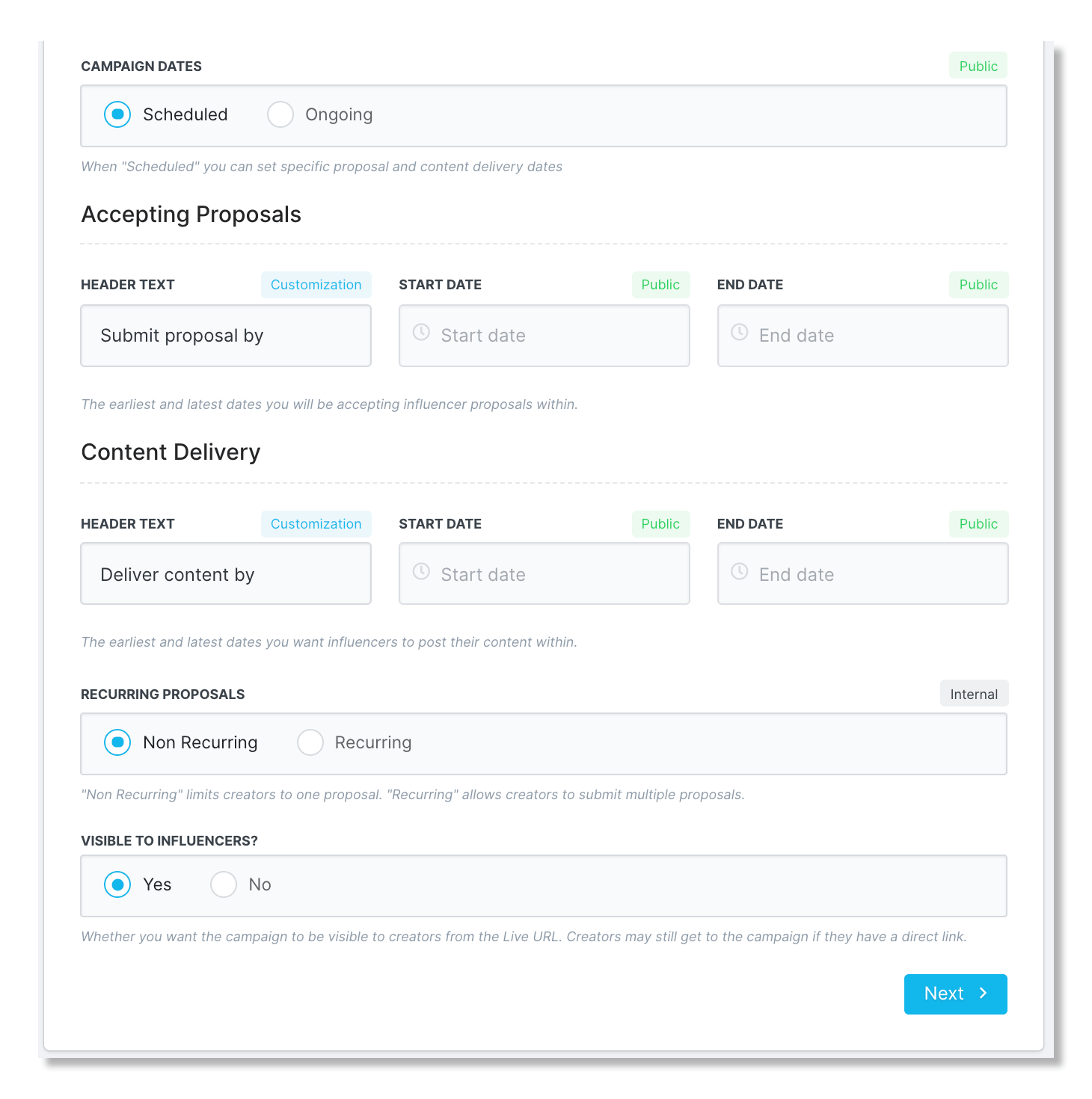
Set the Campaign Dates as Scheduled or Ongoing. If scheduled, you have control over how long content can be pulled into the campaign and how long you will accept proposals. Campaigns will not be visible to creators outside of the proposal dates.
Establish if you would like your creators to submit more than one proposal under Recurring Proposals. This is ideal if you would like to run a long-term campaign and offer the option to send more products.
Once you have set up your campaign and reviewed it using the Live URL Preview button, allow your creator to view the campaign by selecting Yes for Visible to Creators?
Live URL Settings
Under Step 2. Live URL Settings, you are able to customize what is visible to your creators. Create a Public Campaign Title that gives creators a sense of your campaign. If you have creators in multiple campaigns then you can add a differentiating title or a Campaign Preview.
Under Campaign Overview Description, provide a longer description, of what you would like your creators to accomplish and why you want them to participate in your collaboration.
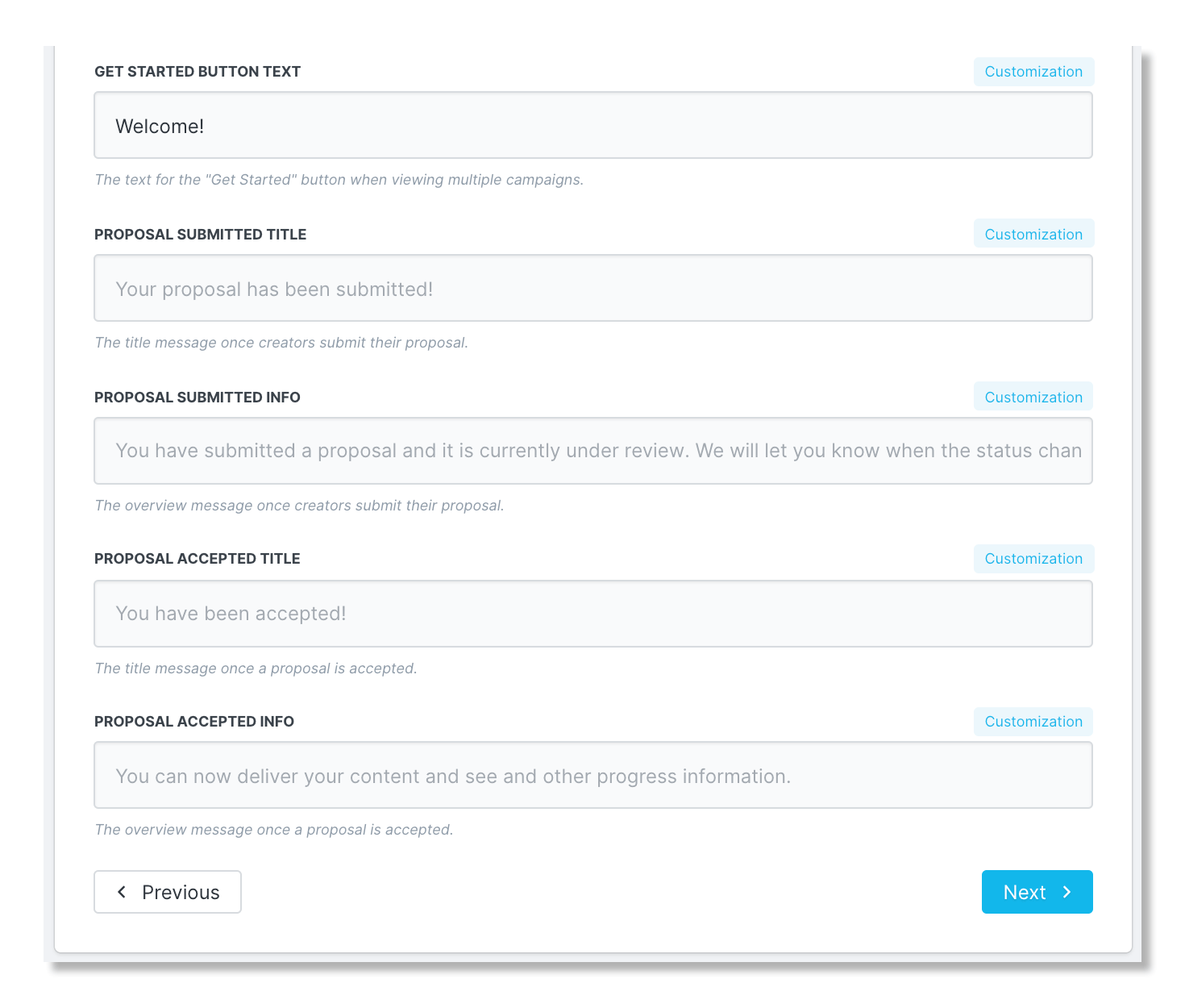
Customize the header text within the Live Site that will be visible to your creators by changing the default sections to headers and information of your choice. This includes:
Get Started Text
Proposal Submitted Title
Proposal Submitted Info
Proposal Accepted Title
Proposal Accepted Info
Notification Preferences
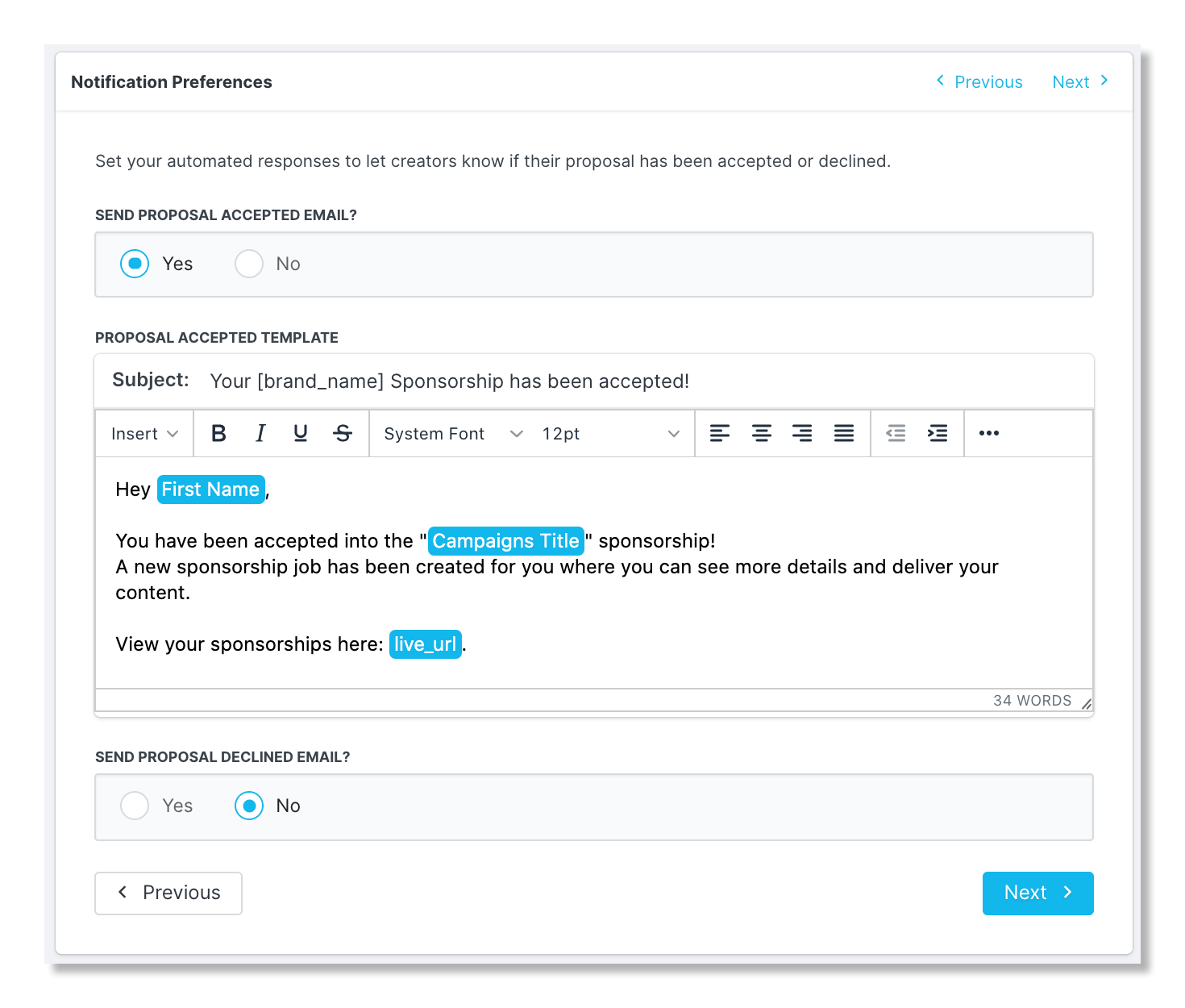
In Step 3. Notification Preferences, you can choose to send automatic responses to your creators when you have accepted or declined their proposals under Send Proposal Accepted Email? and/or Send Proposal Declined Email? Insert pre-made Email Templates and email variables to ensure your emails are personalized to each creator.
Or if you prefer, send manual emails to accept or decline your creators' proposals once you have set up your campaign.
Compensation
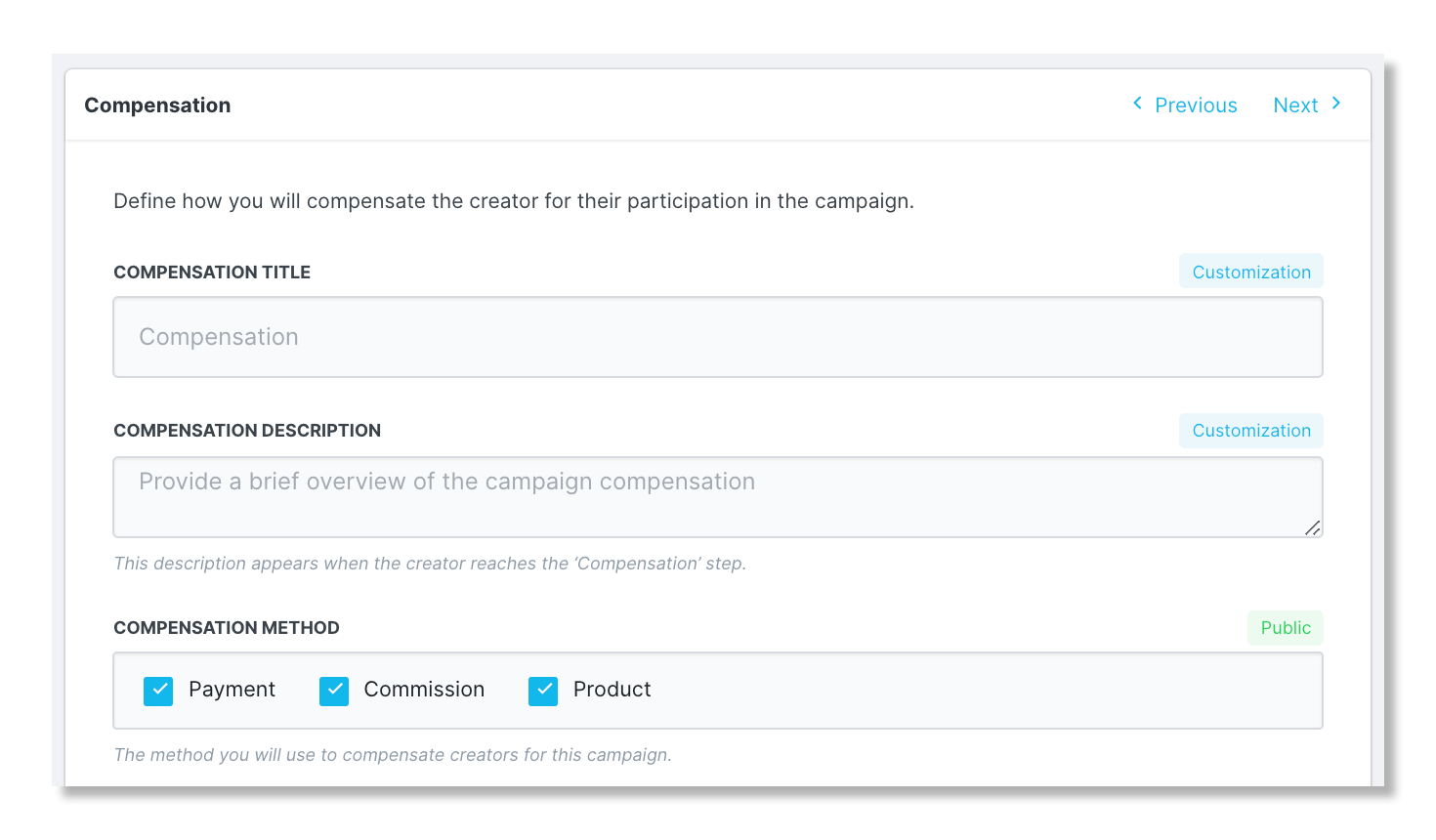
Within Step 4. Compensation, you can begin setting up the compensation you are going to offer your creators. You have the option to choose Payment, Commission, and/or Product as Compensation Methods.
Provide a Compensation Title and a brief Compensation Description of the compensation that will be offered and how it will be sent to them.
Payment
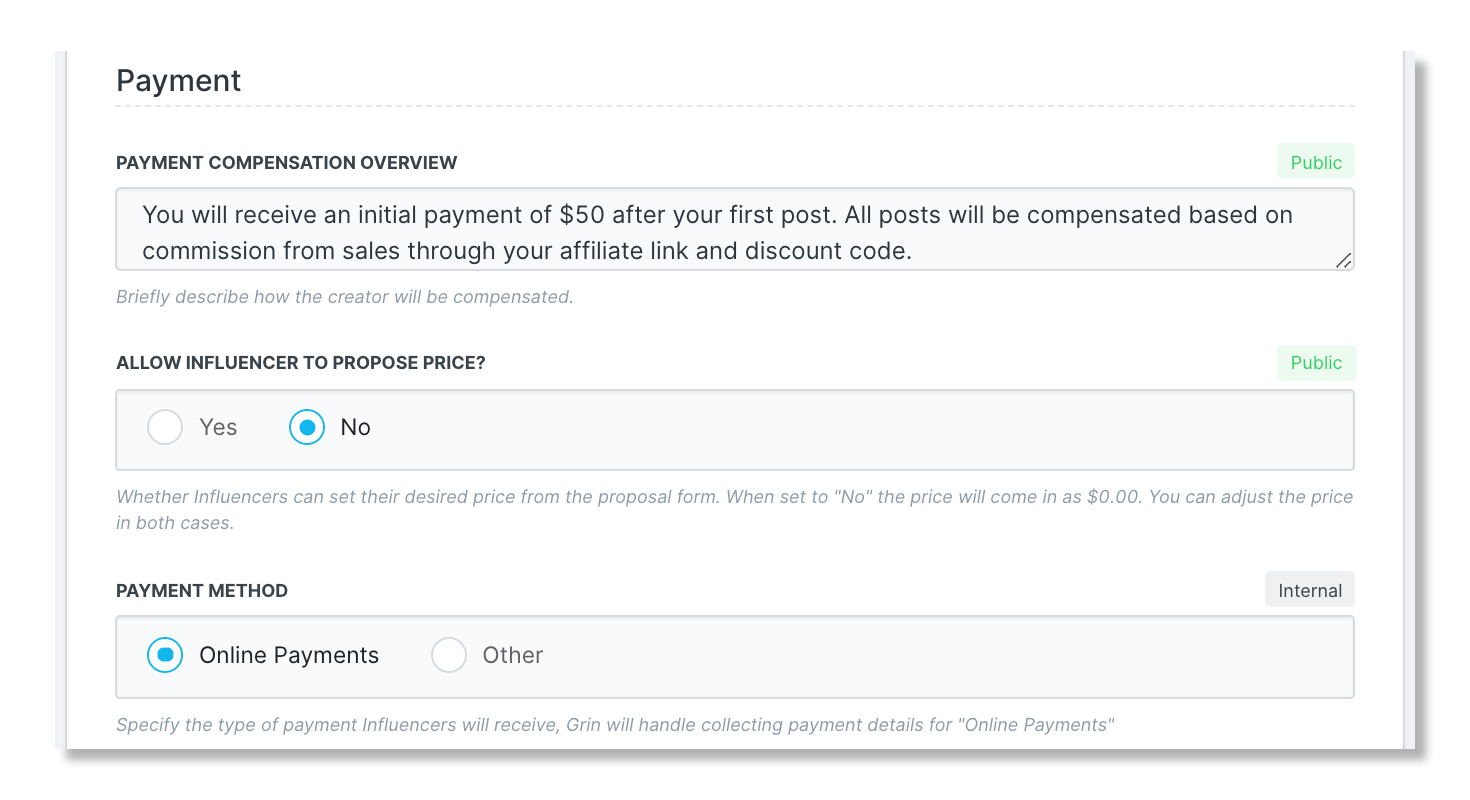
If you selected Payment as a compensation method, enter a Payment Compensation Overview describing how and when your creators will receive payment. You also have the option to allow your creators to propose their own price under Allow Influencer to Propose Price? as an option to negotiate after the proposal has been submitted.
GRIN offers the ability to pay through the GRIN platform, creator funds will need to be added to your account, and your creators will need to submit their payout information (Paypal account and tax form) in order to receive payment through GRIN.
Note: For Payment Method, selecting Online Payments simply indicates that the payments will be sent through GRIN directly. The Other option indicates that your creator's payments will be sent outside of the platform.
Commission
If you selected Commission as a compensation method, enter a Commission Compensation Overview, select a Discount Code Group and/or an Affiliate Link Group, and select how the commission will be paid, either via GRIN or Other.
Caution: In order to assign a discount code or an affiliate link to a campaign, you will first need to create the groups within your brand. These groups hold all the criteria for the links that will be assigned in your campaign such as the Commission Rate, the Discount Applied, the Code/Link Pattern the codes/links will be generated in, and more.
Product
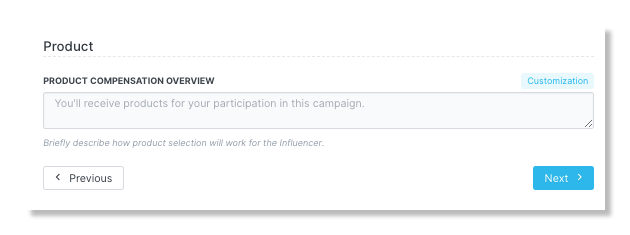
If you selected Product as a compensation method, then enter a Product Compensation Overview and click Next to proceed to Step 5. Select Products.
Select Products
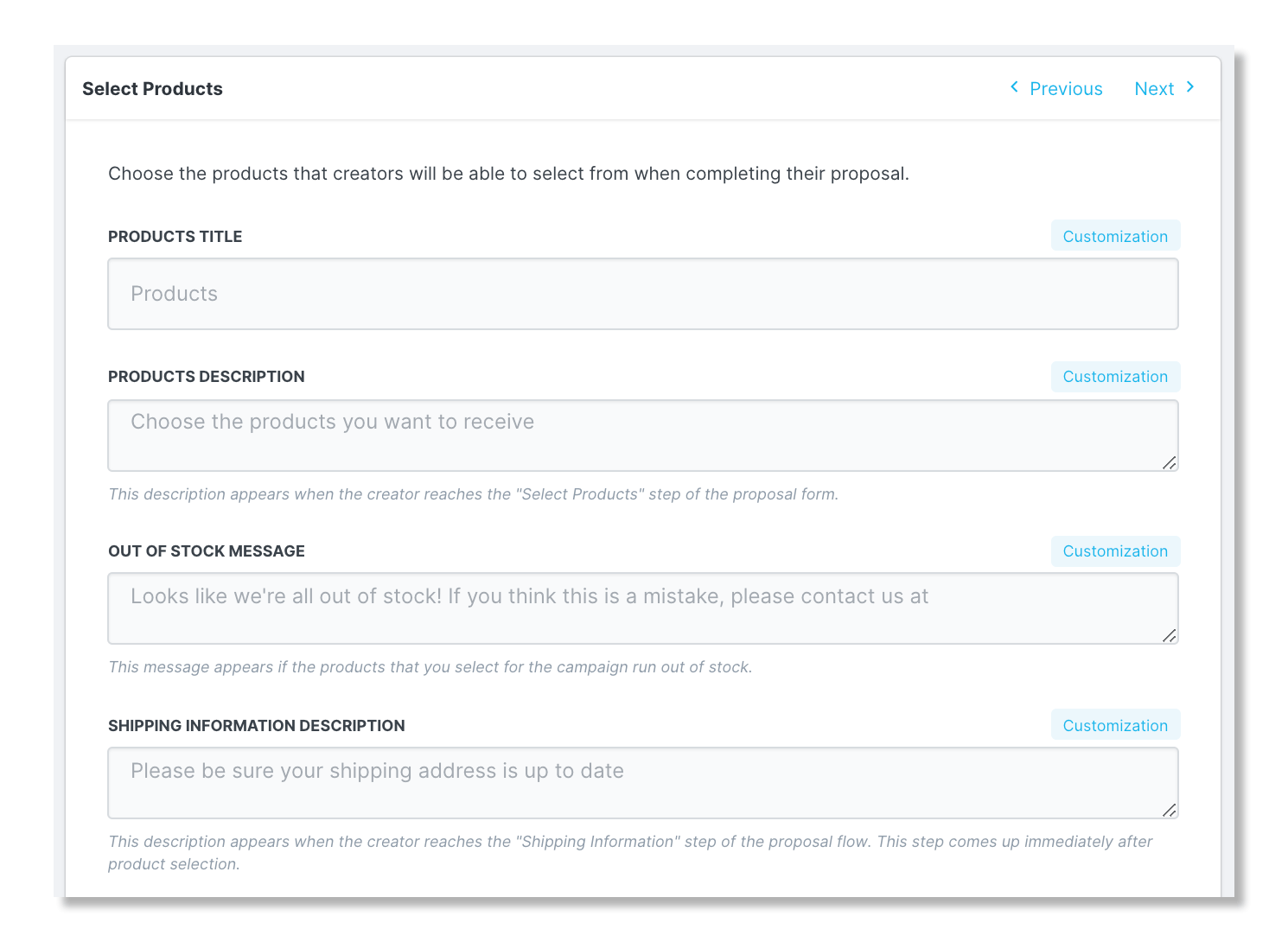
Within Step 5. Select Products, you have the option to customize the Products Title seen within the Live Site, otherwise, the default heading is Products. Provide a description under Products Description or leave it as is if your creators aren't limited by what they are able to select.
You also have the option to customize an Out of Stock Message and the request to make sure their shipping information is correct and up to date under Shipping Information.
Next, select whether you would like your creators to choose their own products under Allow Product Selection? and if you would like to list the product prices under Show Prices?
You also have the option to limit how many products your creators are able to choose under Max Number of Products or limit based on a maximum product price under Max Product Price. If a limit is added to restrict based on the total number of products, then the option to Restrict Products by Collection? will appear.
You also have the option to have your creators choose products directly from your website. Once products have been chosen, they will copy and paste the checkout URL within the Live Site and the chosen products will be displayed to be submitted with the proposal.
Note: The option to use URLs for product selection is unavailable if you joined GRIN after August 22, 2023 or for any Campaigns created after August 22, 2023.
We recommend creating an Activation instead to allow creators to select products with URLs.
Lastly, click Add Products to add your products to be available within the creators' Live Sites.
Note: In order to add products as compensation, you will first need to import or create products within your brand.
Tasks
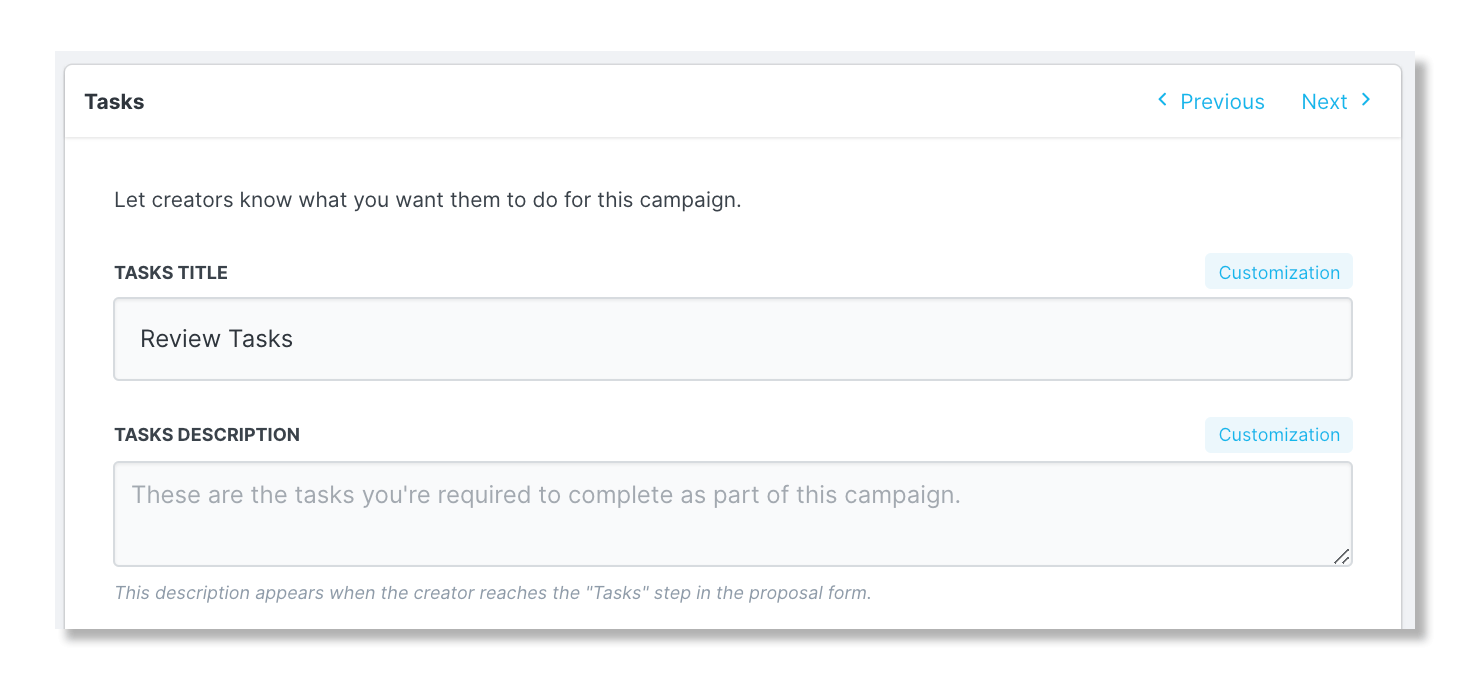
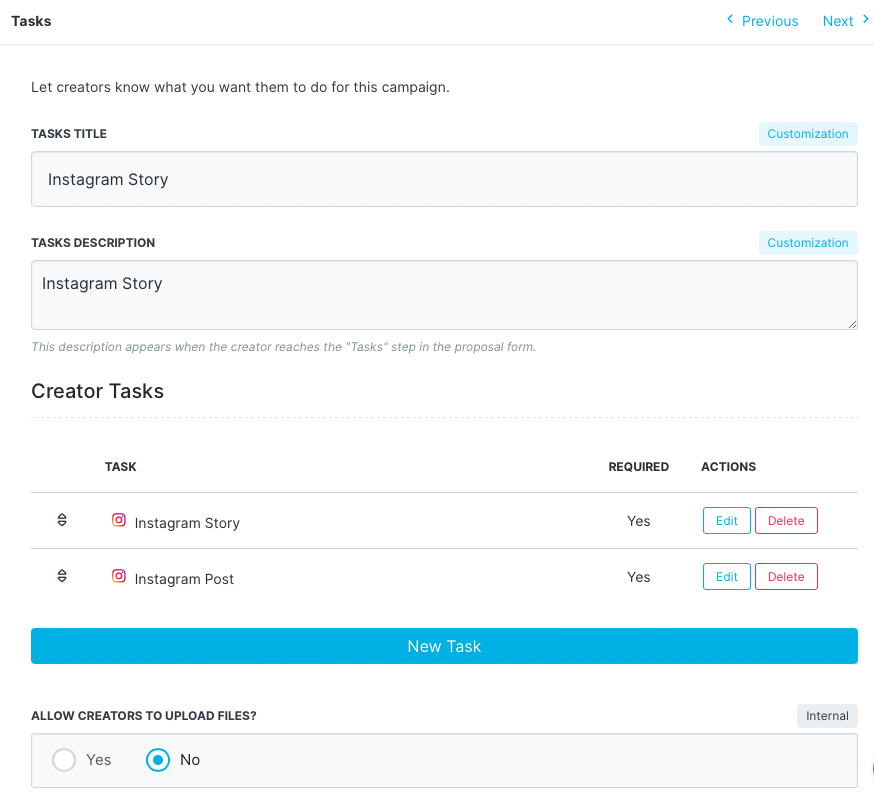
Within Step 6. Tasks, enter a customized Tasks Title or leave empty to default to Review Tasks. The Tasks Description is the perfect place to let your creators know what you expect from them as well as what you would like your creators to do in exchange for the compensation you provide them.
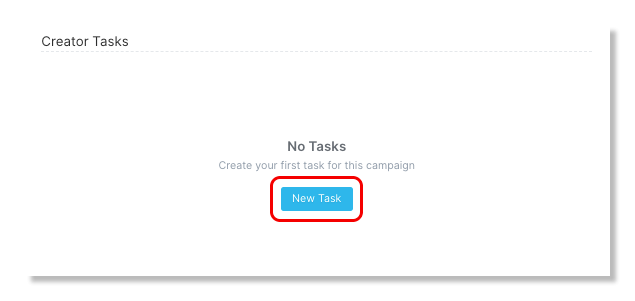
Under Creator Tasks, click on New Task and begin to add in the tasks you would like your creators to complete for their campaign collaboration.
Next, select Yes or No under Allow Creators To Upload Files? It's recommended to allow this option if you would like your creators to upload files of their content for approval before posting on their social accounts.
Lastly, in order for their content to seamlessly pull into GRIN, creators would need to connect their social network accounts. This connection lets brands view creators' posts, insights, and metrics and pull them into GRIN.
Tracking
Tracking hashtags and/or mentions is needed in order for GRIN to locate and pull in creator content.
Note: Your brand must connect an Instagram account in order for content to be pulled in for Social Listening content. You can learn how to do this while setting up your Brand in our help article Creating Your Brand.
Enter a Tracking Description to inform your creators of the importance of using the exact tracking hashtags provided.
The Content Tracking Tags will be the hashtags and mentions used to pull in the content for your campaign. The Extra Tags are additional mentions and hashtags you would like your creators to include, but will not be used to pull content.
Note: It is recommended to add campaign-specific hashtags/mentions within Content Tracking Tags and your brand's hashtag/mention on the Extra Tags section to use across all campaigns.
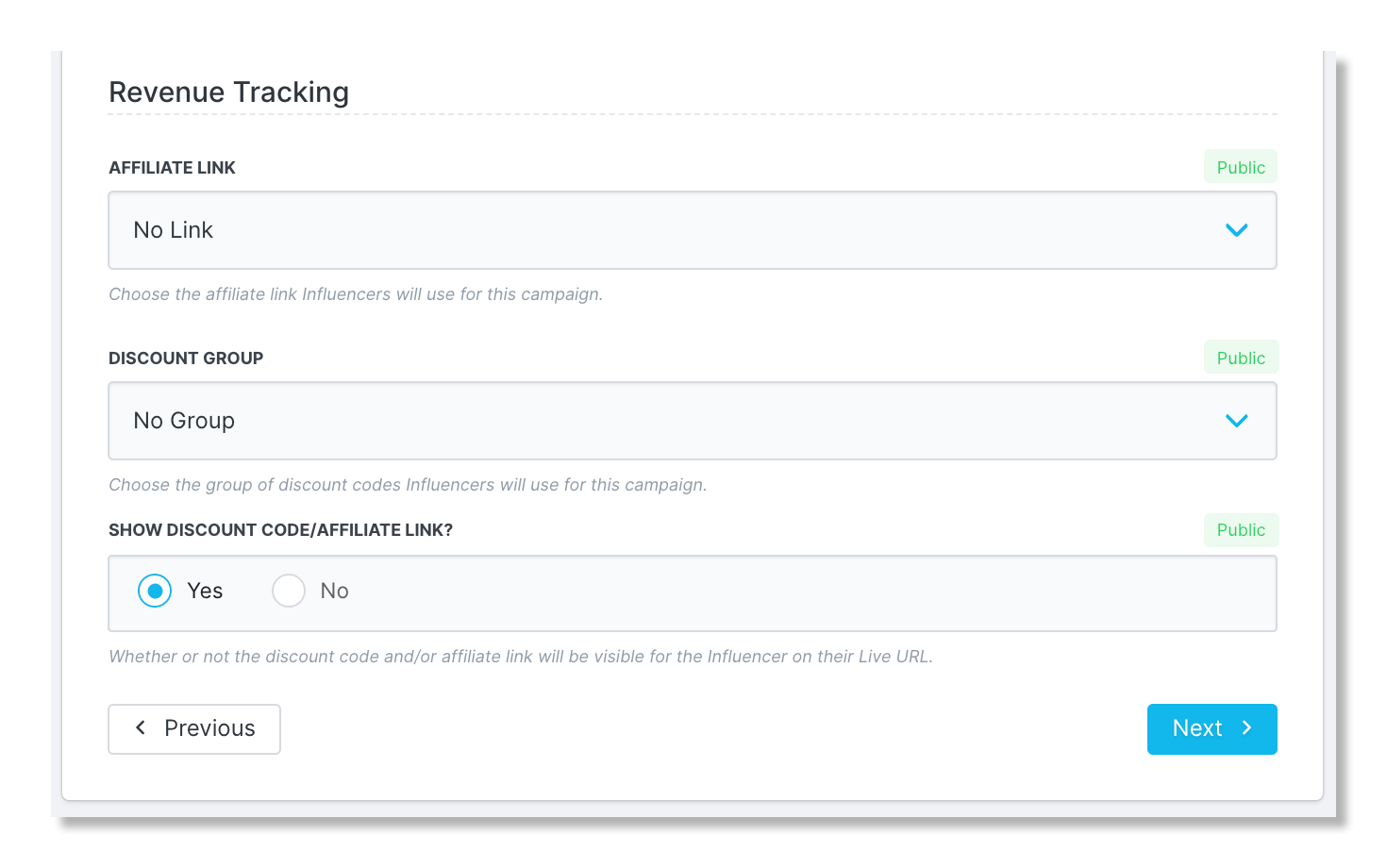
Under Revenue Tracking, you will have the option to add a Discount Code Group and/or an Affiliate Link Group for tracking purposes only. If you had chosen Commission in the Compensation section from above, then revenue will be tracked automatically without the need for choosing a revenue tracking option.
You also have the option to allow your creators to view their affiliate link and/or discount code within their Live Site or not. If the creators are not allowed to view their affiliate link and discount code on the Live Site, you are able to send an email including their code/link variable instead.
Other Information
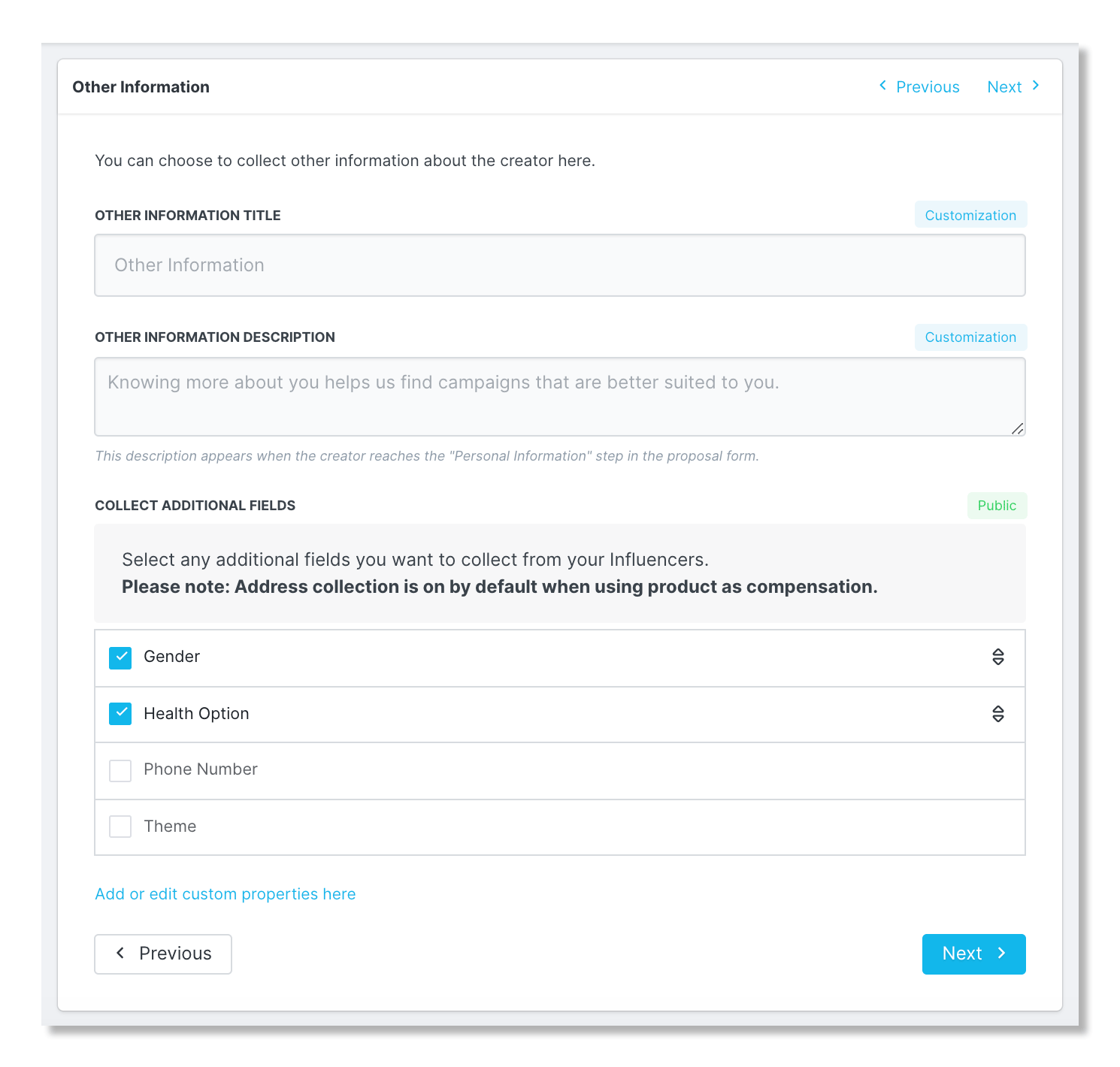
Under Step 8. Other Information, you have the option to request additional information that is not available within the other steps of the campaign setup. Additional fields (such as gender, exercise preference, etc.) can be created within Custom Properties and included on the Live Site.
Customize the Title and Description of this section to be aligned with the theme of what you are requesting from your creators.
Brand Assets
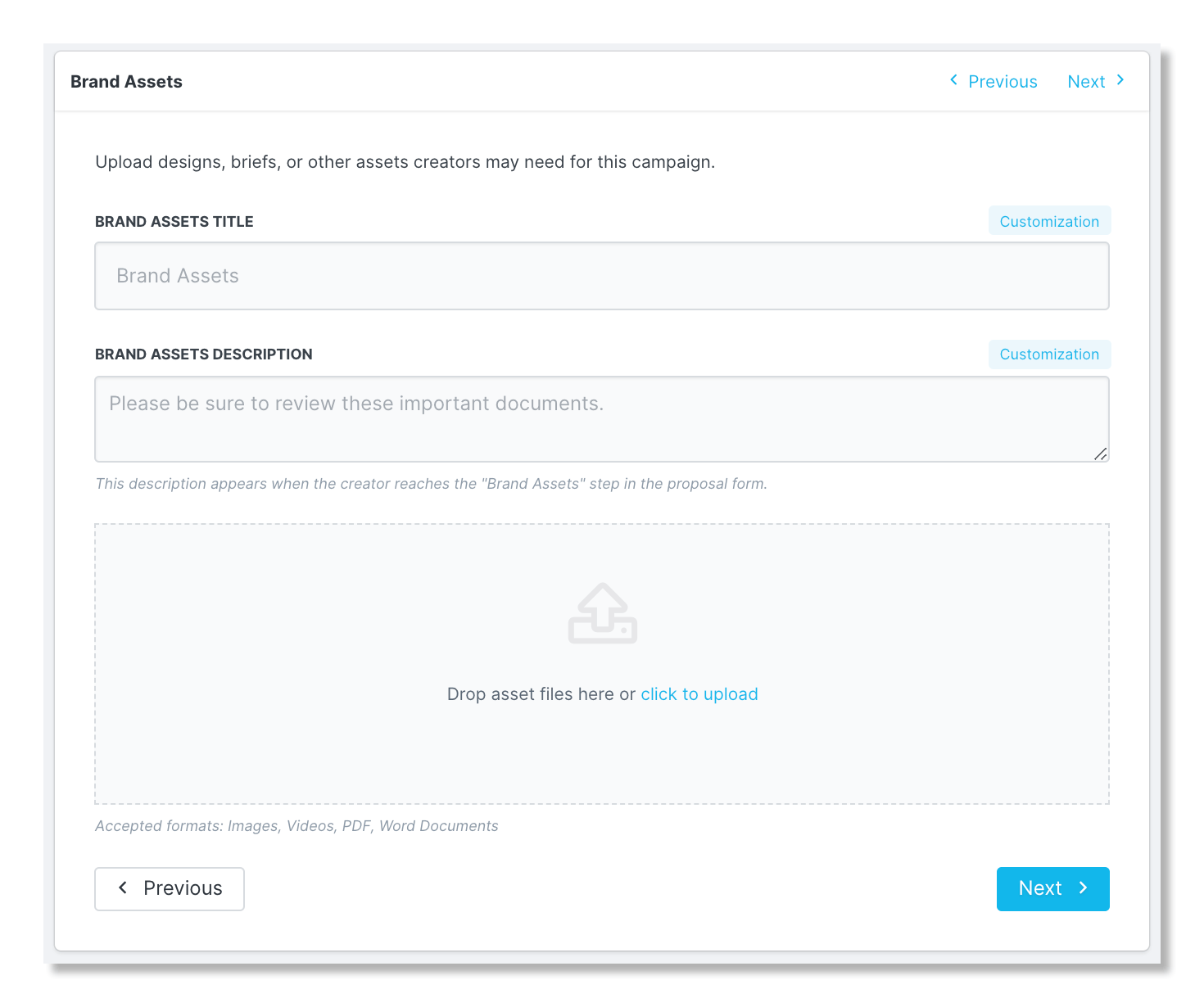
Under Step 9. Brand Assets, import files to assist your creators to know how to style their posts that are in line with your brand's image. Customize the Title and Description and include details on why your creators should consult these documents.
Content Rights
Within Step 10. Content Rights, select the content rights you would like to include or enter your own custom rights and Save your campaign at the top.