
Reviewing and Managing Campaign Proposals
Note: If you joined GRIN on January 23, 2023, or later, Campaigns will not be available for your account and have been replaced by Activations. You can use Activations to manage and organize your creator marketing programs.
For more information, check out our help articles.
What You'll Need
A new or existing Campaign.
At least one creator who has submitted a proposal.
How to Do It
After creators have been added to a campaign, you will be able to send them a proposal to participate in the campaign. After your creator has submitted their proposal, you will be able to review and manage proposals within the campaign workroom.
Review and Manage Influencer Campaign Proposals
1. Click the Program icon and select Campaigns.
2. Click the Campaign Work Room icon.
3. Click on the Proposals tab.
4. Review the proposals submitted by your creators.
5. After review, you can either Accept, Decline, or Negotiate the proposal.
Automatic Acceptance or Declined Proposal Notifications
1. Click the Program icon and select Campaigns.
2. Click the Edit Campaign Details icon.
3. Click on the Proposals tab.
4. In Step 6: Notifications, select Yes under Send Proposal Accepted Email?
5. Compose your Accepted Proposal Email and/or Declined Proposal Email.
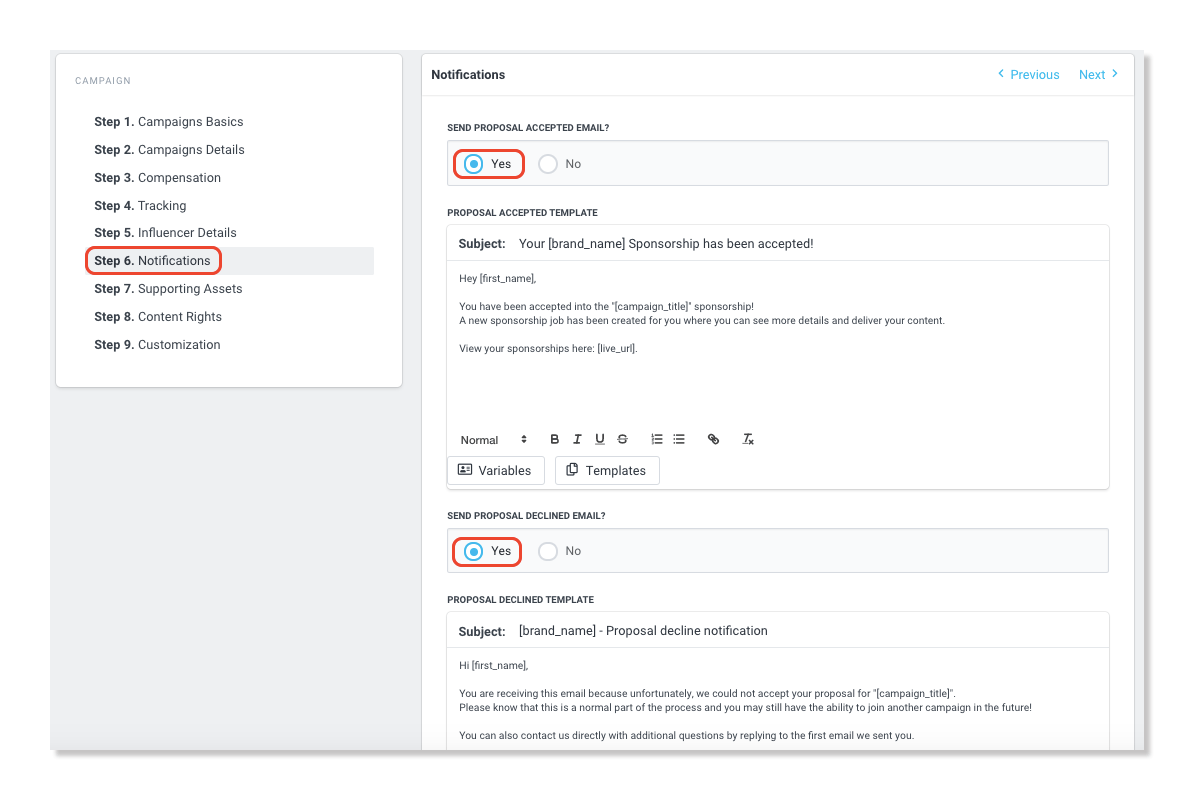
6. Click Save.
Manual Acceptance or Declined Proposal Notifications
1. Click the Program icon and select Campaigns.
2. Click the Campaign Work Room icon.
3. Click on the Proposals tab.
4. In the Actions column, click Send Email.
5. Compose and Send your email.
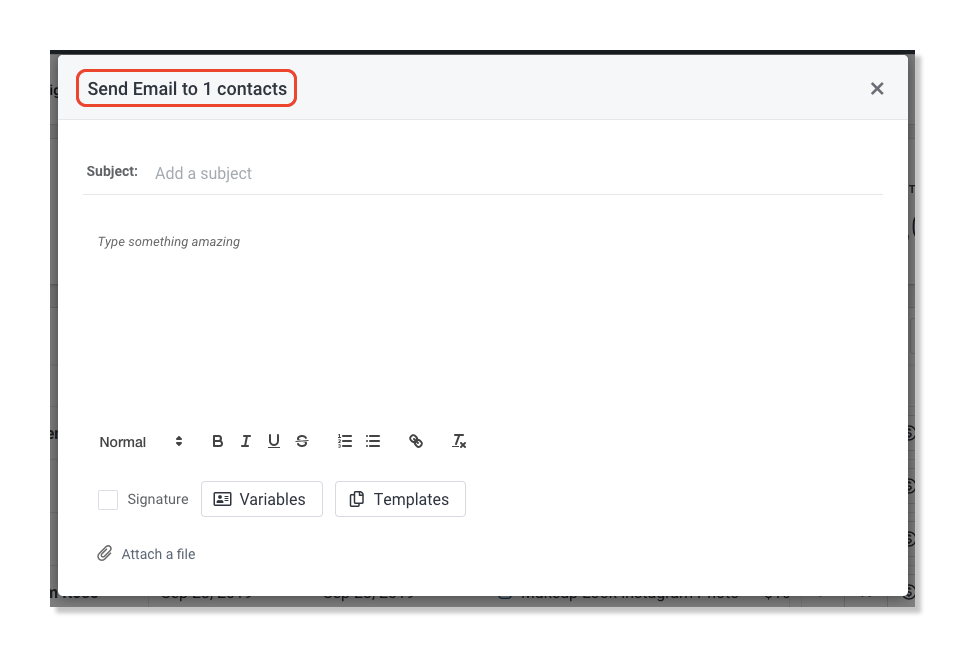
6. Once the email is sent, click Accept Proposal or Decline Proposal.