
Tracking Campaign Progress
Note: If you joined GRIN on January 23, 2023, or later, Campaigns will not be available for your account and have been replaced by Activations. You can use Activations to manage and organize your creator marketing programs.
For more information, check out our help articles.
What You'll Need
A new or existing Campaign.
At least one creator who is activated in your Campaign with assigned tasks.
How to Do It
Use the following guide to understand the Progress section within the Campaign Work Room. The Progress tab allows you to understand how your campaign is progressing through the ability to view posted content, fulfilled product orders, creator proposal notes, proposal created date, etc.
How to Review Your Creator's Progress
1. Click the Program icon and select Campaigns.
2. Click the Campaign Work Room icon.
3. Click on the Progress tab to review shipment statuses, fulfillment status, content delivered, and more.
How to Quick View Posted and Uploaded Content
1. Click the Program icon and select Campaigns.
2. Click the Campaign Work Room icon.
3. Click on the Progress tab.
4. In the Posted Content or Uploaded Files columns, click the eye icon.
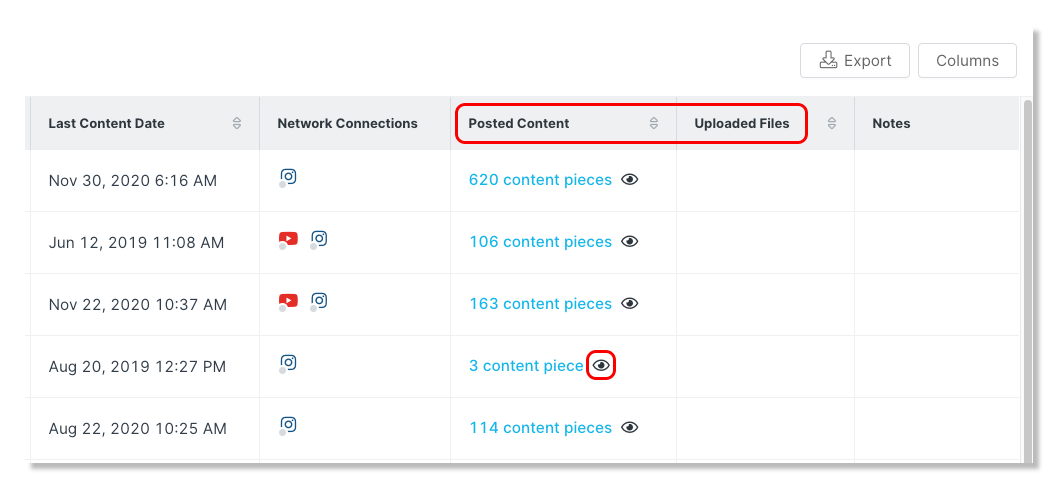
5. Click on a content piece to open a quick view of the post.
How to Deliver Influencer Content
1. Click the Program icon and select Campaigns.
2. Click the Campaign Work Room icon.
3. Click on the Progress tab.
4. Hover over the column of the creator you would like to deliver content for and in the Notes column, click Add Content.
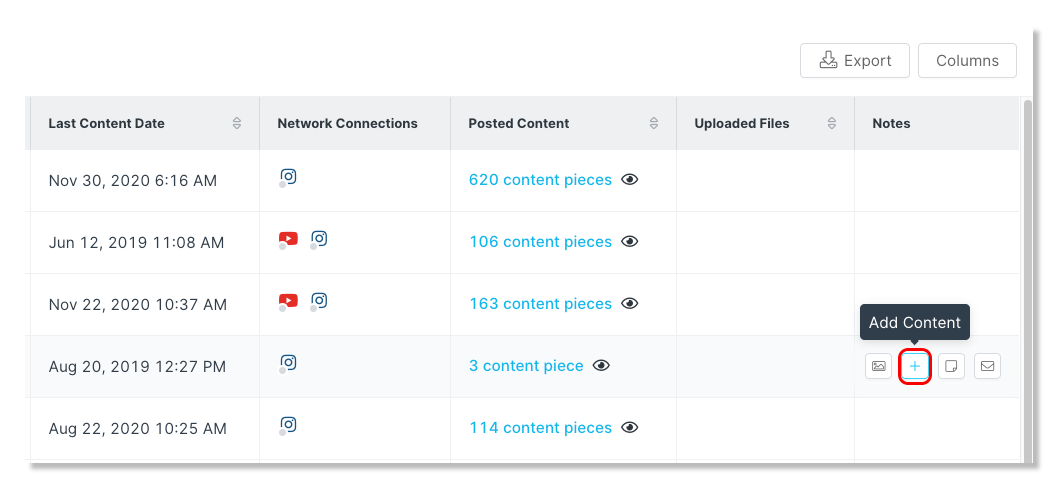
5. Select a Task for the content (optional) and paste the URL of the creator's post.
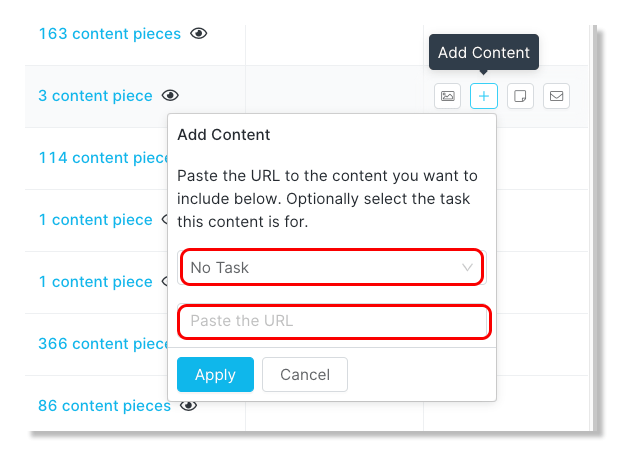
6. Click Apply.