
Reviewing and Approving Affiliates
Reviewing and approving creators is a critical step in managing your affiliate program. Before creators can become active affiliates, they must apply through your affiliate application page. Your team will need to evaluate and approve these creators in order for them to become affiliates.
Another way creators can become affiliates is by having their contact type be classified as Creator in your account. Creators are automatically considered affiliates and will show up in the Approved tab of the Affiliate Hub. Here are the places in GRIN a creator can be marked as a Creator in GRIN:
Note: GRIN OS Lite customers do not have the option to use Curated Lists or to manually add creators to GRIN.
Setting Up an Affiliate Landing Page
2. On Step 2: Page Basics of the landing page settings, make sure the option to Set This Page as Affiliate Only is toggled on.

This ensures all creators who apply through this landing page show up in the Pending tab of the Affiliate Hub so you can review them before approving them as affiliates.
Note that Applicants to landing pages who don't have this setting enabled will not show up in the Pending tab of the Affiliate Hub.
Note: GRIN OS Lite customers do not need to toggle on this option as all creators applying through a landing page will automatically be assigned to the Pending tab of the Affiliate Hub.
3. Once the landing page is set up, you can send out its URL to creators so they can apply to join your affiliate program.
Reviewing and Approving Creators as Affiliates
1. Navigate to the Pending tab of the Affiliate Hub to see which creators have applied to join your affiliate program (note that creators marked as Prospects also will show up here).
Note: GRIN OS Lite packages do not have the Prospects contact type for creators.

2. Click on the creator to see more details about their social profile metrics and content.
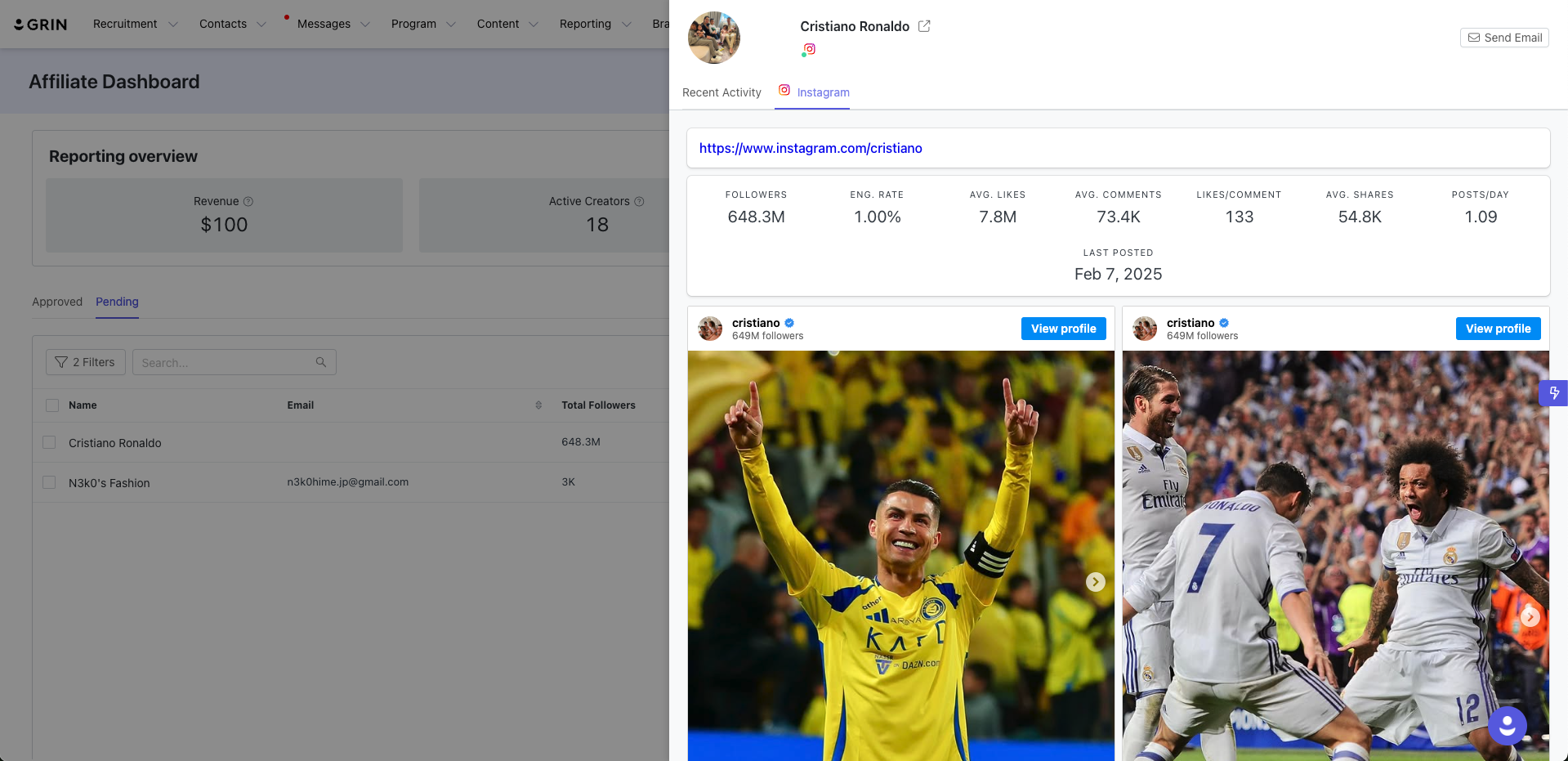
3. After reviewing the creator's details, you can choose to:
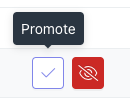
Approve/Promote the creator, which moves them to the Approved tab of the Affiliate Hub where you can assign them links or codes.
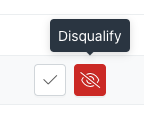
Disqualify the creator, which will remove them from the application process.
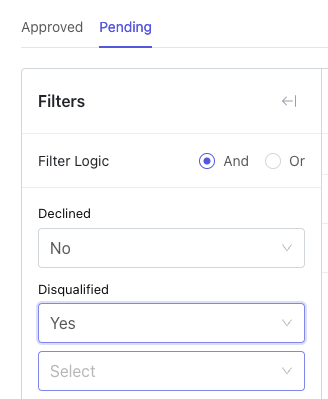
4. If you want to view the creators you disqualified, open the filters and use the Disqualified filter to view the creators you disqualified.
Importing Creators
You can also directly import creators as Approved affiliates through the Import Creators button on the Approved tab.
