
Importing Contacts
Planning to add this whole import to an Activation afterward? Set an Initial Tag in Step 1 below, then follow How to Add an Imported Batch of Creators to an Activation. The import name itself is not a filter.
If you have a list of creators you worked with outside of GRIN that you'd like to work with, you can import those creators with a single CSV file to your Creators or Prospects list. GRIN will import all your creators' contact information, social network information, and other custom properties that you can set yourself.
What You'll Need
A CSV file of your creators. We highly recommend using GRIN's CSV template, which is already set up to be compatible with us. You can download it here.
Any Custom Properties for your creators that you would like to also import are already set up as Custom Properties in GRIN. For more information, see Creating Custom Properties. You should also be sure to include those properties as headers in your CSV file.
An optional custom Tag you'd like to assign your creators when you import them. You'll select the tag during the import process, but can only select one tag per import. For more information, see Managing Tags.
If you'd like to link your creators' discount codes with discount codes in your Ecommerce store, you'll need to integrate your Brand with your Ecommerce store first. For more information, see Integrating Your Ecommerce Store. You should also be sure to include those discount codes underneath a header in your CSV file.
Note: While GRIN's CSV template is already formatted to be compatible when importing, you can also choose to create and upload your own CSV file. When uploading a CSV, there are a few rules to keep in mind:
The header row, or the first row of the CSV, must be your creators' Property Labels, such as First Name, Last Name, or Gender.
These labels can be named anything you want, and you will map them to GRIN's property labels (and any custom labels you create) as part of the import process.
However, you must at least include Email as a property label.
To properly map labels to GRIN labels, be sure that the following labels are put into separate columns:
First Name and Last Name
Address information, such as County, State, City, and Zip Code
Finally, be sure that there are no duplicate labels in your CSV file.
How to Do It
1. Navigate to Contacts > Creators or Contacts > Prospects depending on where you'd like to import to.
2. Click Add Creators > Import Creators.
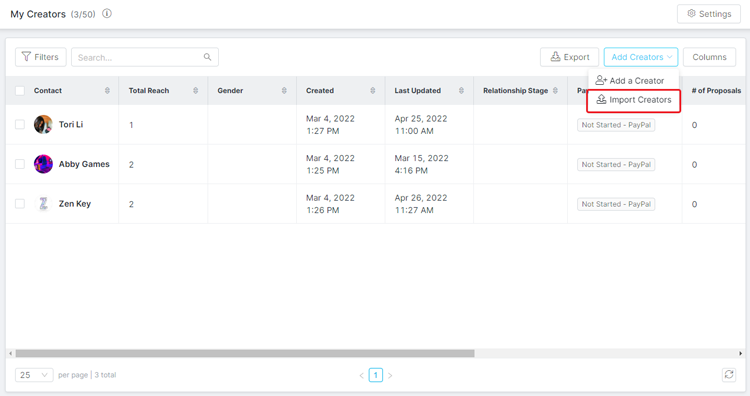
3. Upload your CSV file of creators. Once it's uploaded, you'll be redirected to start mapping your CSV headers to GRIN properties.
4. In Step 1. Import Details, fill in the following fields as desired:
Import Name: Enter a name that will be displayed for your import within the GRIN platform.
Record Type: Select the type of contact you are importing.
Contact Stage: Select the relationship stage to assign the creators you're importing.
Initial Tag: Select a tag to assign the creators you're importing.
Missing Emails: Select Import records without email address if you'd like to ignore your creators' email addresses while importing.
Update Existing Contacts: Select Update contact records when their email address matches an existing contact if you'd like to update any existing contacts with your imported information if their emails match.
Link Creators to Discount Codes: Select Automatically link creators to match discount codes in your integrated store for GRIN to automatically match detected discount codes in your CSV files with matching ones in your integrated Ecommerce store.
5. Click Next. Then, in Step 2. Map Columns, click on the checkbox next to each Column Label you'd like to import into GRIN. These column labels match the names of the column headers in your CSV file.
6. For each column label you included, select a GRIN Contact Property from the dropdown menu to map your label to.
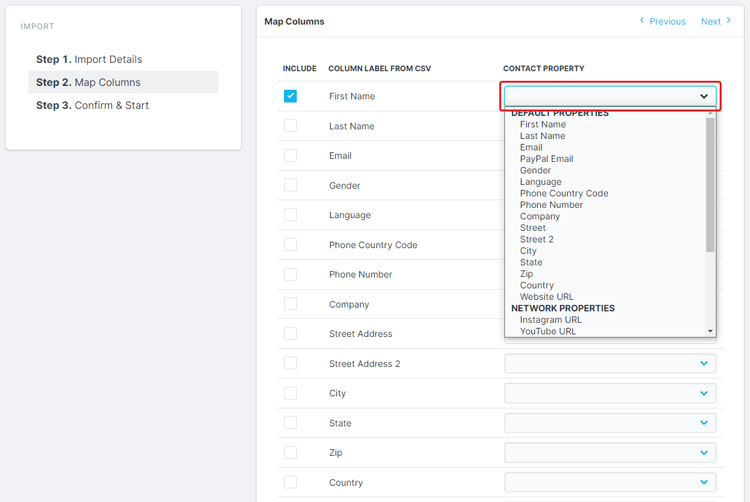
Caution: You must select and map a column label to the Email Contact Property unless you opted not to import your contacts without emails in Step 5. You will not be able to import your CSV file without assigning a column label to the Email Contact Property.
7. Click Next.
8. In Step 3. Confirm & Start, click Start Import.
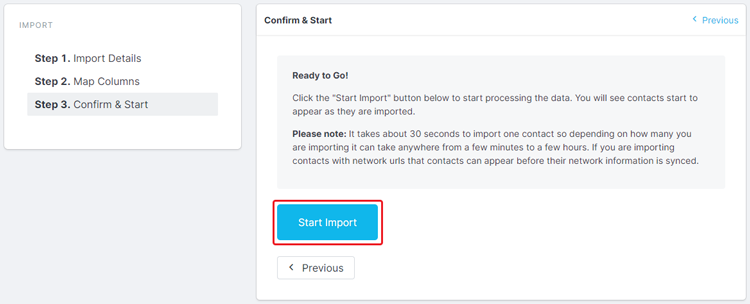
That’s it! Your creators should now be imported from your uploaded CSV file. If you have a large number of products in your CSV file, this process may take up to several hours to complete, but GRIN will complete the import in the background and notify you when it’s done. This means that you can freely navigate and use other parts of GRIN while your contacts are importing.
Once your import is finished, you’ll be able to add your contacts as creators in your creator marketing programs and continue your partnerships with your creators through GRIN.