
Managing Tags
You can create custom Tags to label your creators with. This can help organize and manage your creators as needed for your GRIN account.
How to Do It
You can access your tags from either your Contacts > Creators settings or your Contacts > Prospects settings. This article will use the Creators table to explain the process of managing tags, but the steps to create and manage them are the same from both Contacts pages.
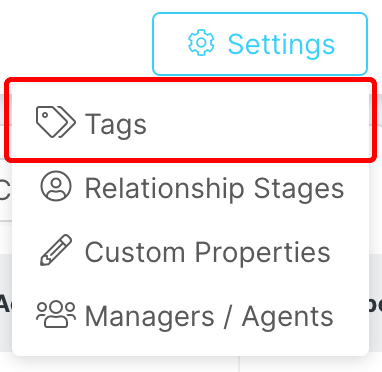
Select Tags from the Settings dropdown menu.
Creating Tags
From the Tags page, click Create.
Enter the Name of your tag and click Save.
Your tag will now appear on your Tags page.
Organizing Tags
You can view all your existing tags and how many creators have been assigned each tag from the Tags page. For each tag, you can:
Click the Edit or Delete button.
Edit: Update the name of the tag. This will also update the tag for any creator that's already been assigned this tag.
Delete: Remove the tag.
Warning: If you delete a Tag, it will be permanently removed and cannot be recovered.
Changing Tags for Creators
Return to your Contacts > Creators or Contacts > Prospects.
Click the checkbox next to one or more contacts.
In the actions that appear, click Tags.
Manage your tags for the selected creators by clicking the box next to each tag. Tags will be updated for every creator to match your selection. Tags are applied with the following logic:
Checked: The tag will be added to every creator that doesn't have the tag yet.
Box: This tag won't be changed for any creator.
Unchecked: This tag will be removed for every creator that has it.
Click Apply.
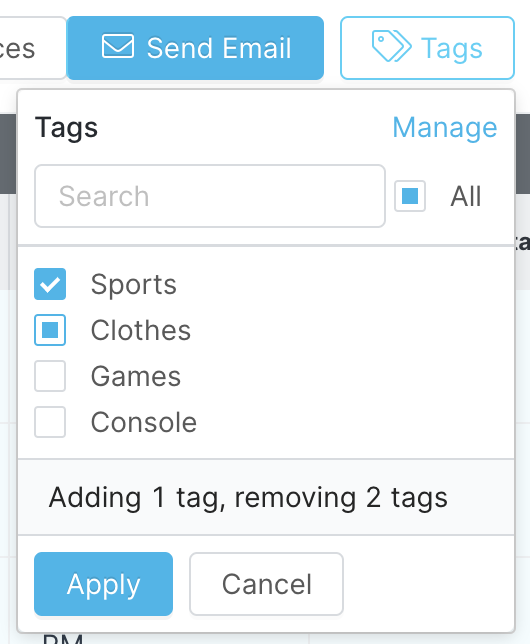
Manage Tags from the popover.
That's it! Your creators' tags have been updated.