
Assigning and Managing Discount Codes in a Campaign
Note: If you joined GRIN on January 23, 2023, or later, Campaigns will not be available for your account and have been replaced by Activations. You can use Activations to manage and organize your creator marketing programs.
For more information, check out our help articles.
What You'll Need
A new or existing Campaign.
A discount code group created in your account.
How to Do It
Discount codes allow you to track revenue gained through your creators that you are able to payout based on a commissioned rate. In order to assign discount codes to your creators and track revenue in a campaign, the Discount Code Group will first need to be created and assigned to the campaign.
How to Assign Discount Codes to Creators
Warning: Keep in mind that once discount codes are assigned to your creators, changing the criteria/detail within the discount code group will not adjust the already assigned codes. Any changes made to the discount code group will only apply to newly assigned discount codes.
1. Click Program > Campaigns.
2. Click the Campaign Work Room icon.
3. Click on the Discounts tab.
4. Select the checkboxes for the creators you'd like to assign discount codes to.
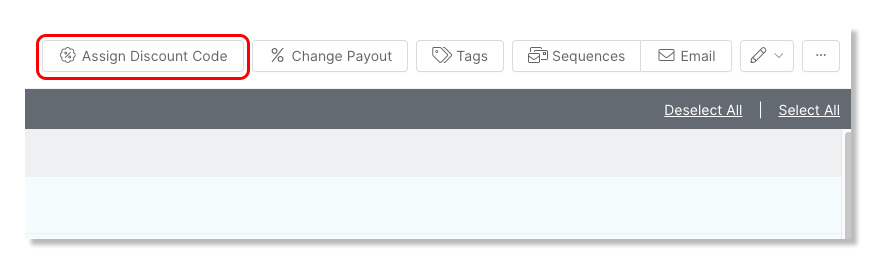
5. Click on Assign Discount Code in the action bar.
How to Change an Individual Creator's Code Payout Rate
1. Click Program > Campaigns.
2. Click the Campaign Work Room icon.
3. Click on the Discounts tab.
4. Click on the creator's discount code.
5. Within the popup, click on the Payout tab and enter the new Payout Type and/or Payout Value.
6. Click Save.
How to Change Creators' Code Payout Rates in Bulk
1. Click Program > Campaigns.
2. Click the Campaign Work Room icon.
3. Click on the Discounts tab.
4. Select the checkboxes to the left of the creators you'd like to change the payout rate for.
5. Click on the Change Payout button.
6. Select a new Payout Type and/or Payout Rate.
7. Click Save.