
Adding a Discount Code Group to a Campaign
Note: If you joined GRIN on January 23, 2023, or later, Campaigns will not be available for your account and have been replaced by Activations. You can use Activations to manage and organize your creator marketing programs.
For more information, check out our help articles.
Discount codes allow you to track revenue gained through your creators that you are able to payout based on a commissioned rate. In order to assign discount codes to your creators and track revenue in a campaign, the Discount Code Group will first need to be created and assigned to the campaign.
What You'll Need
A new or existing Campaign.
An integrated Ecommerce store with your brand.
An existing discount code group.
How to Do It
You can follow the steps below to learn how to set up affiliate links with or without commission payments.
How to Set Up a Campaign With Commission Payments
1. Click on Program and select Campaigns.
2. Click on the Edit Campaign Details

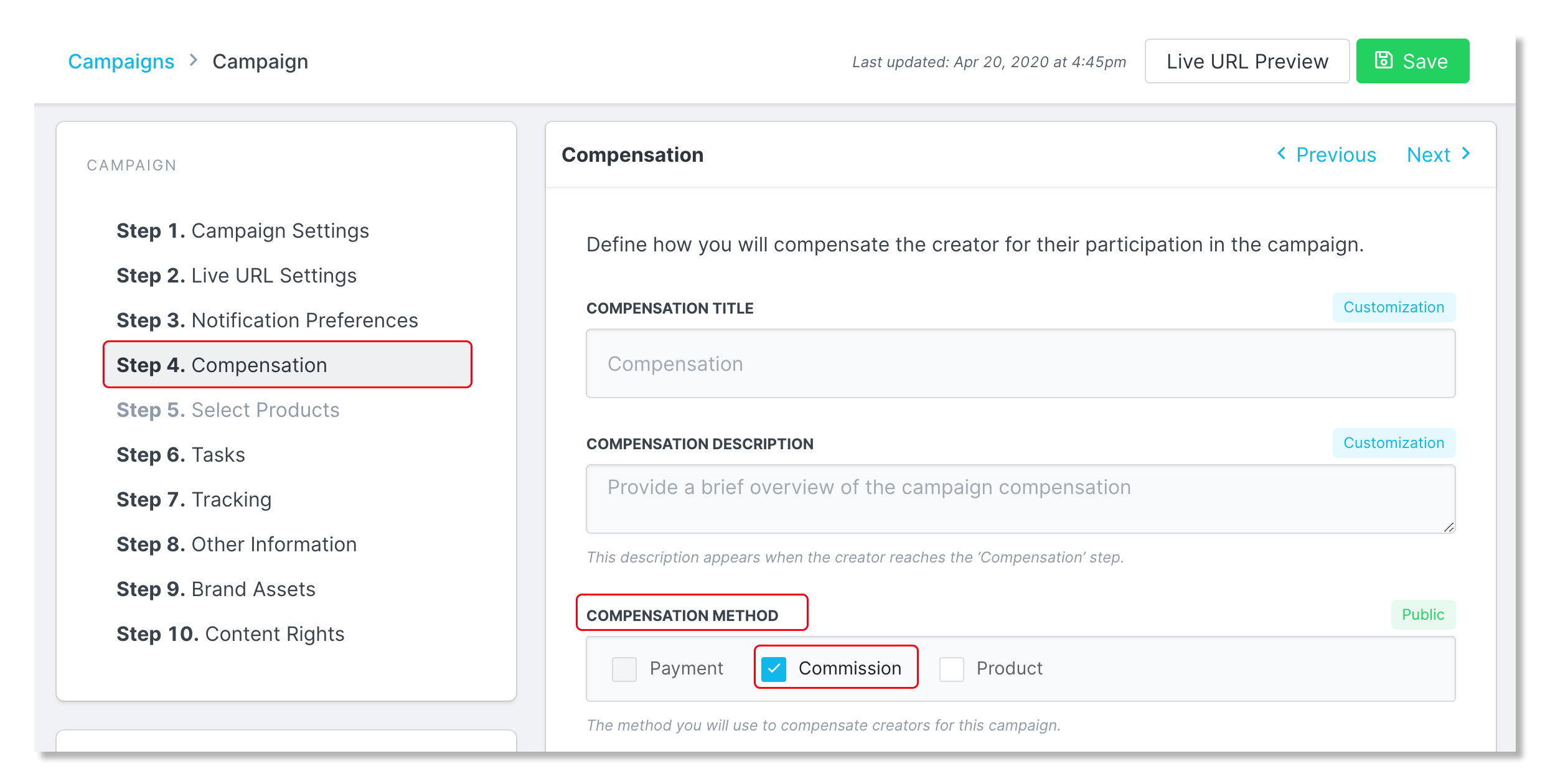
3. In Step 4. Compensation, select Commission as a Compensation Method.
4. In the Discount Code box, select the discount code group which is where you would like the codes to be created.
5. Click Save.
How to Set up a Campaign Without Commission Payments
1. Click on Program and select Campaigns.
2. Click on the Edit Campaign Details icon.
3. In Step 7. Tracking, scroll down to Revenue Tracking and select a discount code group in the Discount Code box.
4. Click Save.