
Reviewing and Managing Partnership Deliverables
There are a few ways to view partnership deliverables or the content that has been delivered by your creators and the progress they have made.
What You'll Need
A Partnership with at least one deliverable.
How to Do It
Check out the sections below to learn how to quickly view and filter deliverables as well as how to manage and move content within Partnerships.
Quick View of Deliverables
In the Deliverables column, there is a Quick View icon that will show your creator's total number of deliverables broken down by media type. This feature allows you to view your partner’s progress at a glance rather than clicking Manage Partnership to view this information.
1. Click on Program > Partnerships.
2. Search for your creator to confirm their submitted deliverables.
3. Scroll over to the Deliverables column and click the View icon.
4. Review the content submitted for the deliverables by media type.
Note: This would be a great time to send a reminder email if your creator is either behind on their deliverables or is doing a great job by submitting content for each task. Sending reminders or congratulatory emails is a great way to build your relationship with your creator and secure your return on investment.
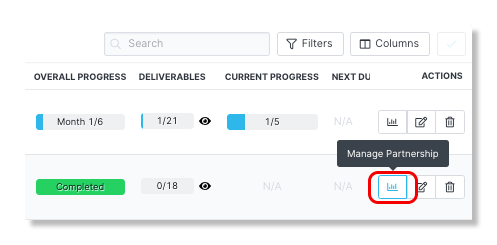
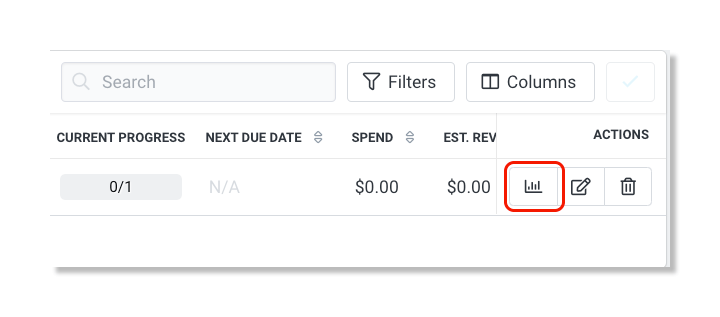
5. In the Actions column, click on the Manage Partnership icon.
6. Click Send Email and compose your email.
7. Click Preview to review your email and click Send.
Deliverable Media Type Columns
Add Deliverable Media Type columns to your Partnerships table in order to easily see deliverable progress for specific media types.
1. Click on Program > Partnerships.
2. Click the Columns button and scroll down to find the Deliverable by Media Type option.
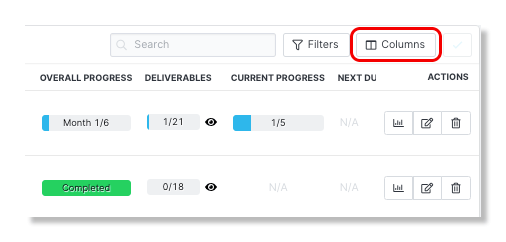
3. Click the checkbox next to the deliverable media type you would like to add.
4. Click Save.
Note: The Columns feature is a great way to keep your quick view of partnerships organized and allows you to add the information that you would like to see.
Deliverable Media Type Filter
Use the filter option for Media Type on the Partnerships table, so that you may filter your view based on your creators’ deliverable media type.
1. Click on Program > Partnerships.
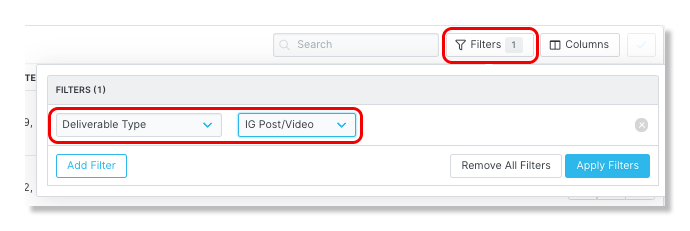
2. Click the Filters button and select Deliverable Type as the filter.
3. Select the content type.
4. Click Apply Filters.
Last Content Date Column
Add the Last Content Date column to the Partnerships table to provide more visibility into when content was last posted by your creators.
1. Click on Program > Partnerships.
2. Click the Columns button and scroll down to find the Latest Content Date option.
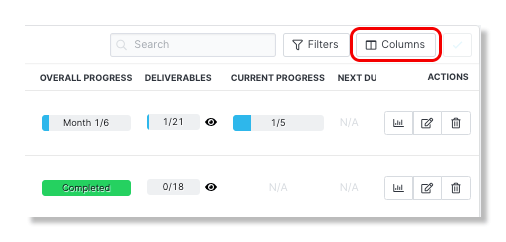
3. Click the checkbox next to the Latest Content Date column.
4. Click Save.
Manage your Partnership Deliverables
Manage your partnership deliverables within the partner's partnership profile page. This page not only allows you to view the content delivered by your partners but also allows you to accept/deny the content, add notes, delete the content, etc.
1. Click on Program > Partnerships.
2. In the Actions column, click on the Manage Partnership icon.
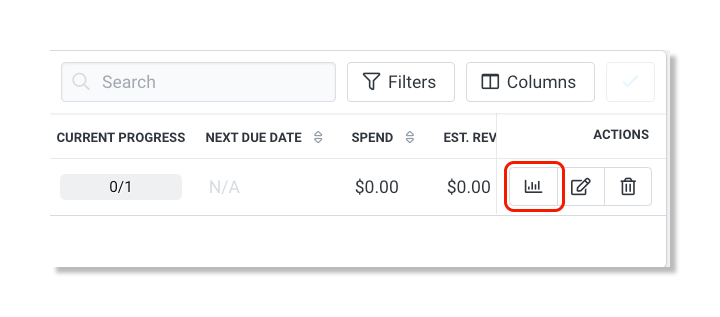
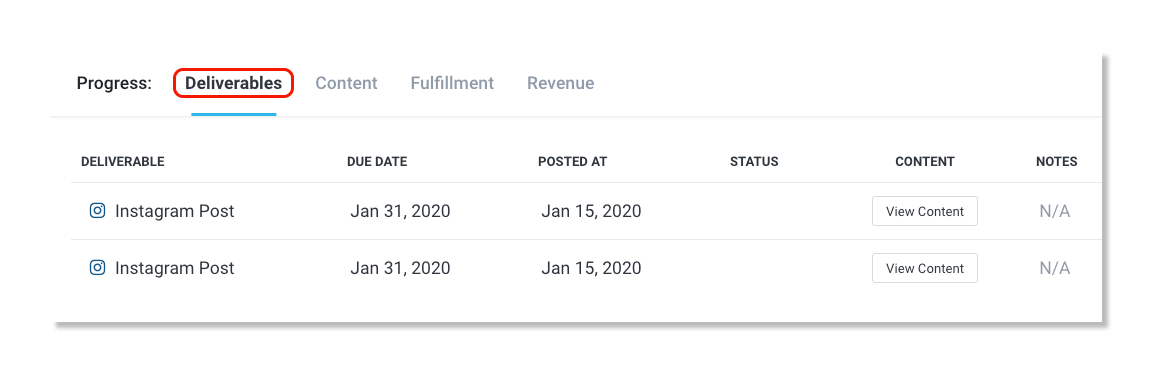
3. In the Progress section, click on the Deliverables tab.
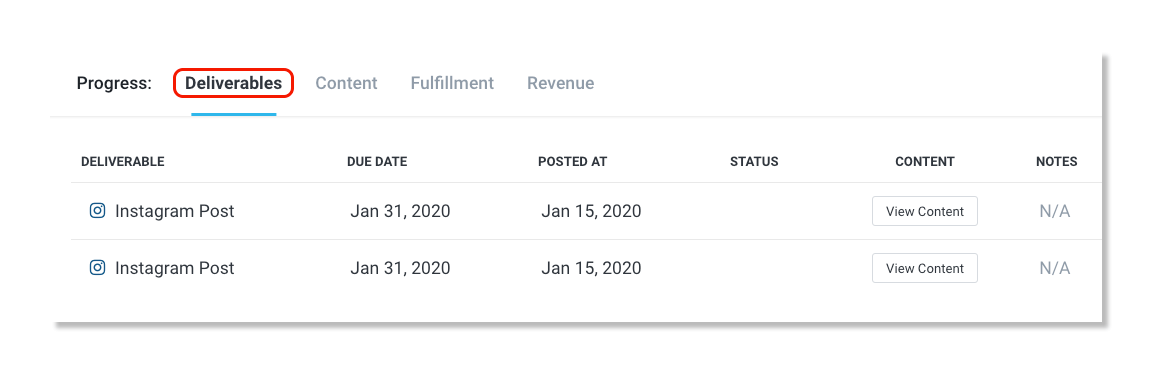
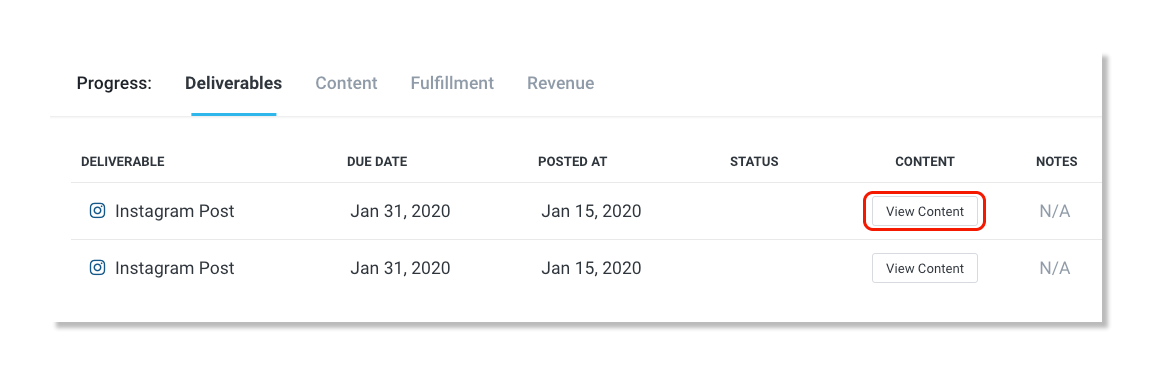
4. Under the Content column, click on View Content.
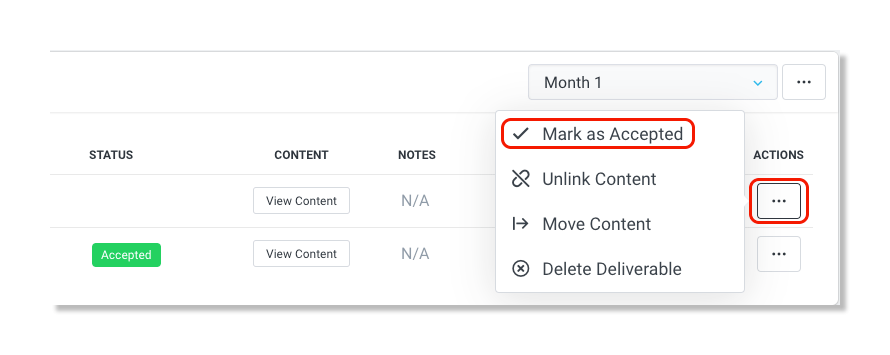
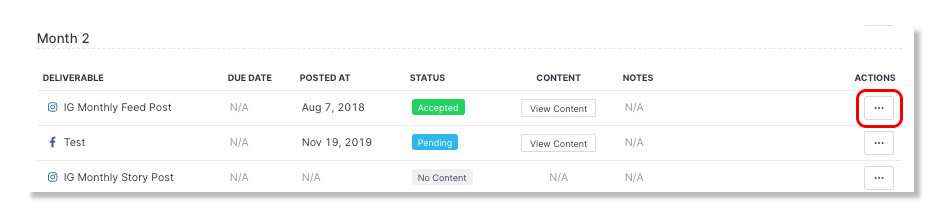
5. In the Actions column, click on the ellipsis icon and select Mark as Accepted.
How to Move Content Deliverables to a Different Month
If you notice that a piece of content has been pulled into the incorrect month, you have the ability to move it over to its proper month. The following steps in this section will take you through how to reorganize posts into their correct delivery months.
Note: Content may link to an incorrect month due to content spaces still being available for that particular month. Once all the content deliverables are filled for the month, new content pulled in will then proceed to be linked to the next month of the partnership.
1. Click on Program > Partnerships.
2. In the Actions column, click on the Manage Partnership icon.
3. In the Progress section, click on the Deliverables tab.
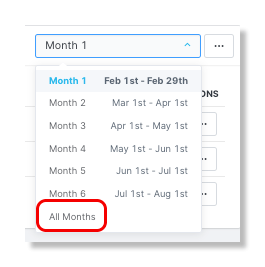
4. In the Months dropdown menu, select All Months to review all content deliverables by month of the partnership.
5. Locate the content you would like to move and click the ellipsis icon.
6. Select Move Content.
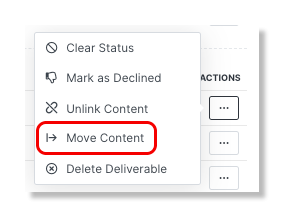
7. Select a Partnership, the Deliverable (task), and the Interval (month).
8. Click Move.