
Creating Collection Groups
Overview
Once you have a collection, you can create folders for collections called Collection Groups. This is great for organizing your collections in sections that are easy to navigate and make sense for your programs.
What You'll Need
A Brand. See Creating your Brand for more information.
An existing Collection in your Brand. See Creating a Collection for more information.
How to Do It
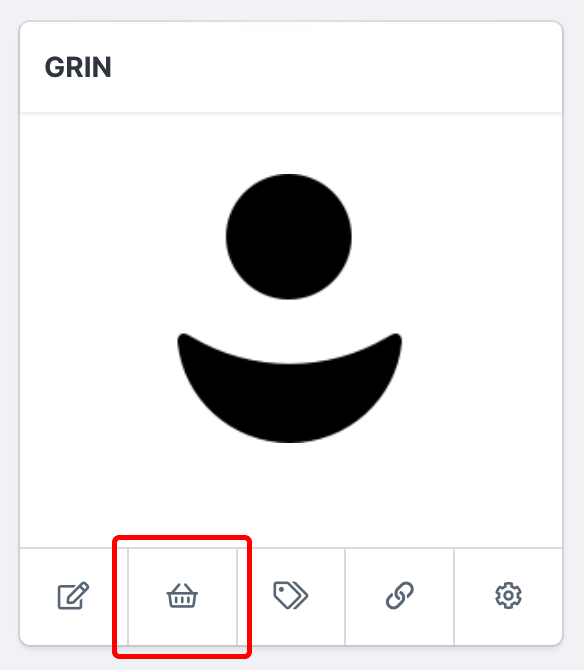
1. Navigate to Brand > Products on the Brand you'd like to create a Collection for.
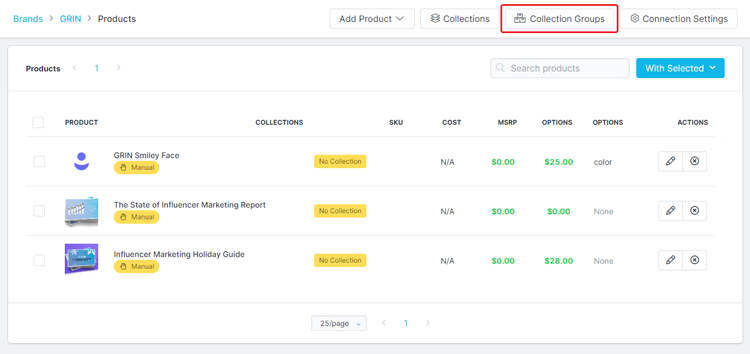
2. Click Collection Groups.
3. Click New Group.
4. Complete the following fields:
Navigation Item Name: The name of your new group. This is required.
Parent Navigation Group: Select another existing Collection Group to sort your new group under.
Navigation Item Image: Upload an image for your group.
5. Click Save.
Conclusion
You now have a new Collection Group ready to have Collections added to it. To add a Collection to a Collection Group, simply go to the Collection's settings and assign it a Navigation Group. Your Collection Group should appear in the dropdown menu.