
Creating a Custom Task in a Campaign for Manually Uploaded Content Files
Overview
Note: If you joined GRIN on January 23, 2023, or later, Campaigns will not be available for your account and have been replaced by Activations. You can use Activations to manage and organize your creator marketing programs.
For more information, check out our help articles.
This outlines the steps on how to add a custom task in your campaign for manually uploaded content so that the functionality to manually upload content files will be available to influencers on their Live URL.
What You'll Need
A new or existing Campaign.
How to Do It
1. Ensure your campaign already has a custom task setup. If you need help with this process, visit our article on How to create a Custom Campaign Task in a Campaign.
2. After adding the required custom task and adding the descriptions, make sure that Allow Creators to Upload Content is set to Yes so that the Other Uploads tab will be available for your creators to upload files to on their Live Site.

3. Once you add the custom task to your campaign, you can view and download those deliverables by going into your campaign workroom and selecting Embed View under the Content tab.

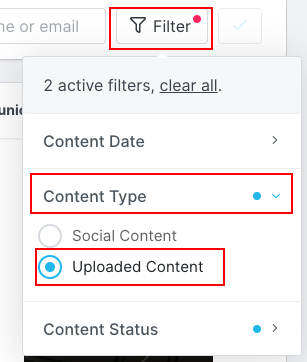
4. Next, click on Filter to reveal a drop-down menu where you can select Content Type, and select Uploaded Content.
Caution: Each uploaded file must be less than 500MB and adding additional required tasks to a campaign will apply as part of a creator's proposal moving forward. However, this cannot be adjusted for proposals that have already been submitted and approved.