
White Labeling the Creator Experience
You can white label your Creator Experience so that any creator who works with you or applies to you will see your business’ branding on creator-facing GRIN pages. This is great for maintaining consistency and trust between you and the creators familiar with your brand.
There are a few ways you can white label the Creator Experience. All of these are optional, and you can white label as few or as many as you need. These options are:
Creator Domain: The URL domain for a creator’s Live URL.
Page Title: The title of a creator’s Live URL page in the browser.
Email Alerts: The email domain when sending email alerts to creators.
You can learn more about how to white label each of these below.
What You'll Need
If you want to white label a Creator Domain or Email Alerts, you’ll need to have a new subdomain ready. This subdomain should not be active elsewhere.
Examples of subdomains you can use are
[creators.yourdomain.com](https://creators.yourdomain.com)for creator live sites and[go.yourdomain.com](https://go.yourdomain.com)for affiliate links.
Note: If you’re interested in white labeling your Creator Domain or Email Alerts, we highly recommend your web admin, or another individual with access to your DNS settings for your website, complete the processes below.
How to Do It
To access your Creator Experience white labeling settings, navigate to Account > Settings, then select Creator Experience under White Labeling.
From here, you can white label the various settings available in Creator Experience using the steps below.
White Labeling the Creator Domain
In order to white label your creator domains on creators' Live Sites, you’ll need to work directly with GRIN’s Support team. Here's how you can do this:
Prepare two subdomains for white labeling: one for the Creator Live Site (e.g.,
[creators.yourdomain.com](https://creators.yourdomain.com)) and one for Affiliate Links (e.g.,[go.yourdomain.com](https://go.yourdomain.com)).Create the following DNS CNAME records:
Creator Live Site Domain CNAME:
[creators.yourdomain.com](https://creators.yourdomain.com)→[CloudFront distribution hostname provided by GRIN]Creator Live Site AWS Certificate Validation CNAME:
_[validation-hash.creators.yourdomain.com](https://validation-hash.creators.yourdomain.com)→_validation-token.acm-validations.awsAffiliate Link Domain CNAME:
[go.yourdomain.com](https://go.yourdomain.com)→[CloudFront distribution hostname provided by GRIN]Affiliate AWS Certificate Validation CNAME:
_[validation-hash.go.yourdomain.com](https://validation-hash.go.yourdomain.com)→_validation-token.acm-validations.awsSet the record type to CNAME with TTL (Time-to-Live) value set to automatic or default.
After DNS record creation, allow for propagation time and validate CNAME records using your DNS provider's tools.
Ensure no conflicts with existing distributions during validation, as most providers do not support multiple distributions for the same domain.
4. In your Creator Experience settings, navigate to Creator White Labeling setting.
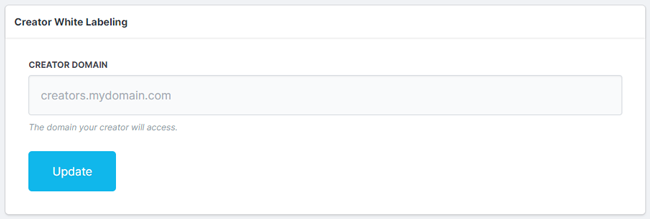
5. In the Creator Domain field, enter the subdomain you provided to the Support team in Step 1.
6. Select Update.
Your Live URL domain should now be white labeled. If validation errors occur, re-check the CNAME entries for typos and ensure the correct target values are used for each subdomain. AWS only allows a single distribution per domain; ensure other configurations don't conflict.
Note: You can white label multiple domains, including domains for affiliate links, in addition to Live Sites if desired. If you would like to white label multiple domains, contact the Support team for further assistance.
White Labeling the Page Title
1. Navigate to the Page Title setting.
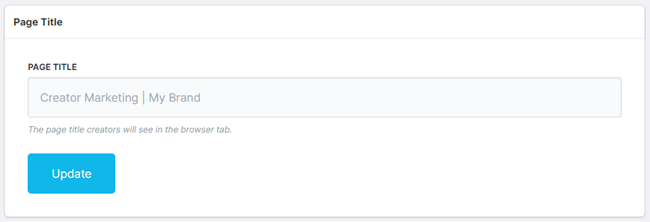
2. In the Page Title field, enter your desired page title.
3. Select Update.
Your Live Site page titles should now be white labeled, and creators will see your custom page title in their browsers when they navigate to their Live URLs.
White Labeling Email Alerts
1. Navigate to the Email Alerts setting.
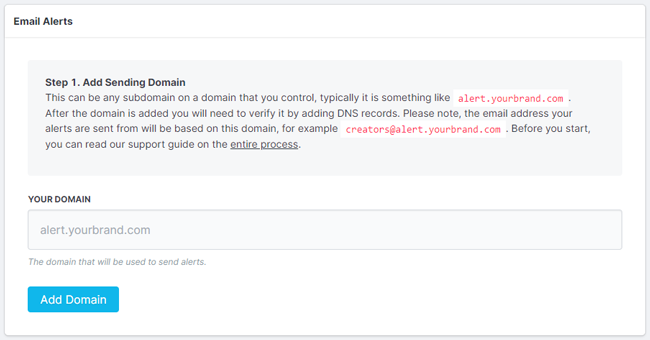
2. In the Your Domain field, enter your desired email domain.
3. Select Add Domain. This will generate DNS records.
4. Add the appropriate DNS records to your domain depending on your provider.
5. Select Check DNS Records to verify your DNS records are working.
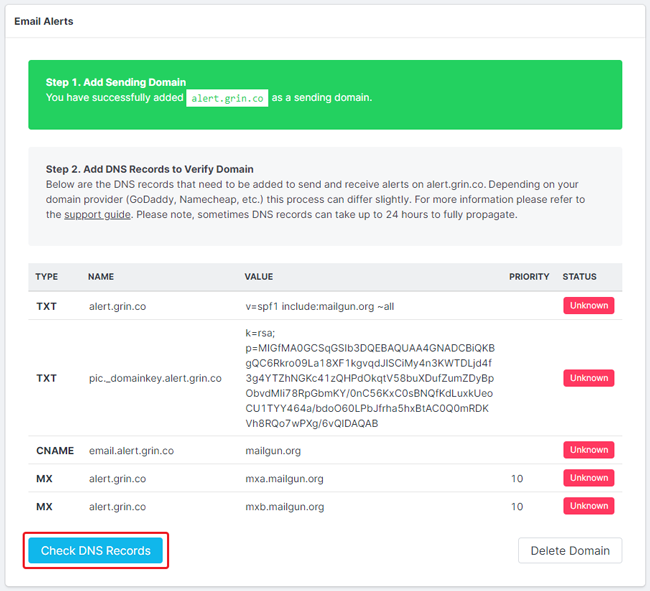
Note: It may take up to 24 hours for your DNS records to fully propagate.
6. Once your records are successfully checked, enter your brand’s desired Name, Email Address, and Reply-To Email Address.
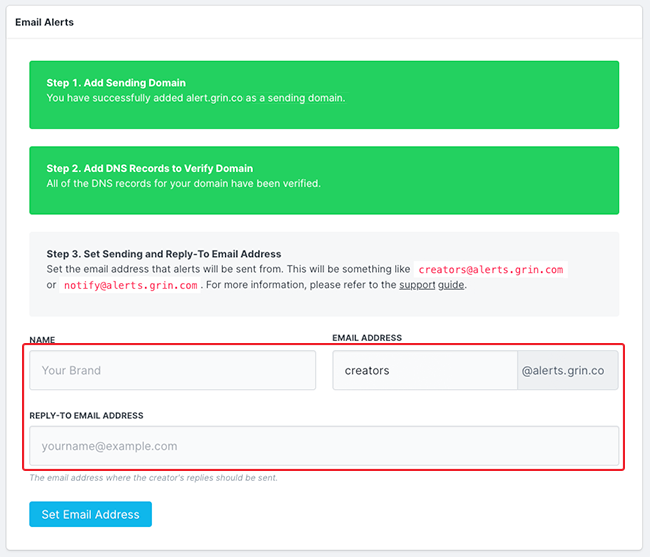
7. Select Set Email Address.
Your email domain should now be white labeled and will appear with your white labeled domain when creators receive email alerts from you.