
Updating Your Expired Credit or Debit Card
If your connected card expires, you can easily update it within Payment Methods. GRIN also marks your expired cards so you can quickly identify which cards you need to update. Be sure to take advantage of this to keep your cards up to date!
Note: An expired card will not be available as a payment method when adding creator funds until you update it.
What You'll Need
An existing, expired credit or debit card saved as a payment method.
A Brand Admin role.
How to Do It
1. Navigate to Account > Settings > Creator Funds Deposit. \

2. Then click Link an Account or Generate Invoice. This will display all your current payment methods linked to your GRIN account.
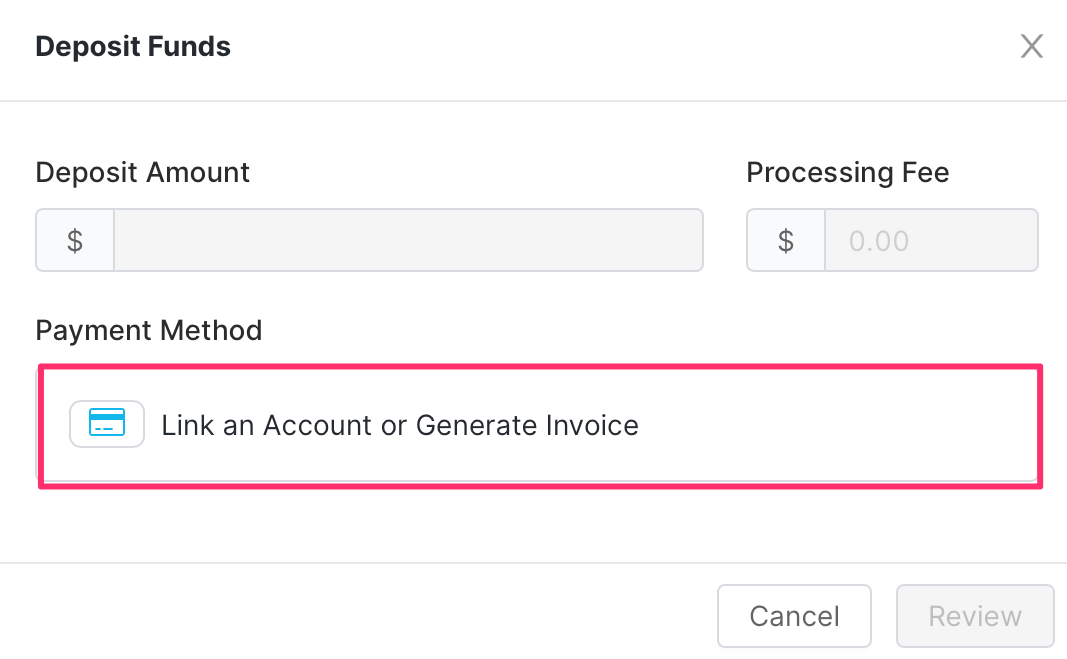
3. Click on the Update Card button on your expired card. This will open the Edit Payment Method modal.
Note: The Update Card button only appears for cards with the Card Expired status. If you don’t see any cards with this button, that means none of your cards need to be updated.
4. Update your card’s Expiration Date.
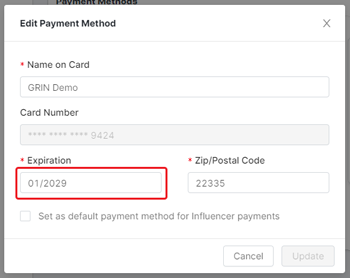
5. Click Update.
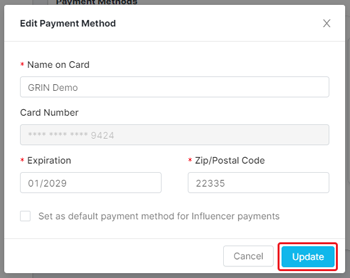
That’s it! You should receive a confirmation message at the top of your screen that says Payment method updated once you’ve updated your card successfully, and your card should no longer have the Card Expired status. Now you’re ready to use that card to deposit funds again in GRIN!