
Sending an Email Sequence
To send a Sequence, you need to add creators to the sequence from various contact lists in GRIN. Typically, you can send sequences using a bulk action by selecting one or more creators from your list.
Some of the places you can send sequences from are from your Contacts tables or from within an Activation. You can learn how to check if you can send a sequence from a table and how to do so with this article.
What You'll Need
An existing email template. To learn more, you can visit Creating an Email Sequence.
How to Do It
Note: For this example, we step through how to send sequences from your Creators table, but you can repeat these steps for any table that has creators in it.
1. Navigate to Contacts > Creators.
2. Click the checkbox next to one or more creators. This will display new bulk actions you can take.
3. Click Sequences.
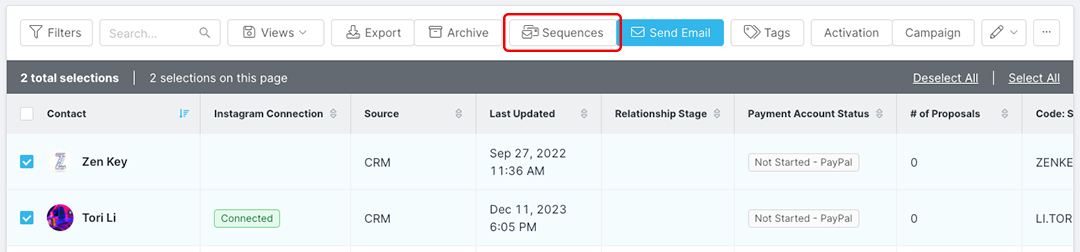
Use the checkbox to display the Sequences bulk action.
4. In the modal that appears, select the sequence you'd like to send to these creators and an Activation to tag the emails with if desired, then click Preview Emails.
5. Review the email preview for the first creator you selected, including the follow-up emails in the sequence. You can also Edit or Discard the emails from this modal.
6. Click the arrow button to move on to the next creator's email preview.

Use the arrows to review each creator's preview.
7. Repeat Steps 5 and 6 for every creator's email preview.
8. Once you've finished reviewing, click Start Sequence.
Your sequence's first email will be sent to the creators you selected. Then, the email sequence will automatically send follow-up emails according to the conditions you set when you created the sequence. You can check in on the status of your sequences from the Email Dashboard.