
Sending a DocuSign Contract
If you have DocuSign integrated with your GRIN account, you can send your DocuSign contract templates to your creators directly within your Activation. This is great for maintaining a seamless workflow within your Activation while ensuring you and your creators are aligned on expectations for your creator marketing programs.
What You'll Need
DocuSign integrated with your account. For more information on integrating with DocuSign, check our help article Integrating with DocuSign.
Templates already created in DocuSign.
An Activation with creators. For more information on creating an Activation, check out our help article Creating an Activation.
How to Do It
1. Navigate to Programs > Activations > Your Activation > Contracts.
2. Click the Send Contract row action on the creator you'd like to send a contract to. This will open the Send Contract module.

3. In Step 1: Select Template, select a template from your list of templates.
4. Click Next.
5. In Step 2: Add Recipients, add a Full Name and Email for any recipients that do not have these fields filled out by default.
Note: The available recipients per contract template is determined by how many Roles you've created for that template in DocuSign. Leave those fields blank in DocuSign if you'd like to edit them in GRIN.
6. Click Next.
7. In Step 3: Customize Message, enter a Subject Line and an Email Body that you want to include with your contract.
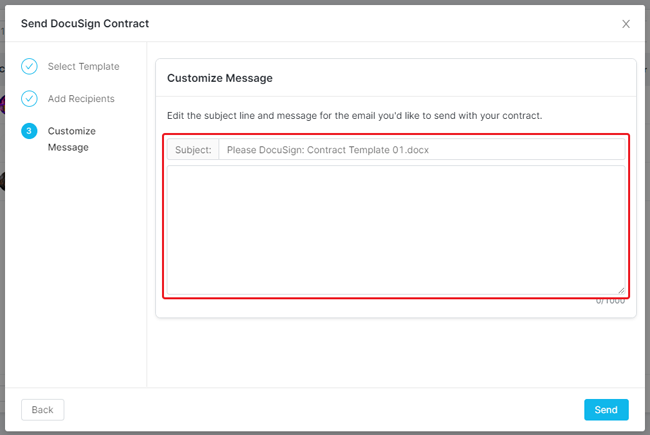
8. Click Send.
That's it! Your contract template will now be emailed to your recipients and yourself, and your creator will have a new status showing the completion status of the contract you sent.