
Finding a Creator's Live Site URL
A Live Site is a creator's personal portal to access everything related to collaborations with your Brand. The Live Site includes all of the active programs they're participating in, their payout information, social networks, and more.
When you add a creator as a contact, GRIN will automatically generate a unique Live Site URL for that creator. You must send a creator their Live Site URL, otherwise they won't be able to access it to set up their social networks or payout information. You can learn how to send a creator's Live Site URL in this article.
How to Do It
There are two simple ways of finding and sending a creator's Live Site URL:
Using the Live URL variable
Copying from the creator's Contact Profile
Using the Live URL variable
If you're integrated with a communication app in GRIN, such as your email, you can quickly compose and send creators their Live Site URLs with the Live URL variable. This variable appears everywhere you can send messages.
To use this variable, follow these steps:
1. While composing a message, select Insert > Insert Variable.
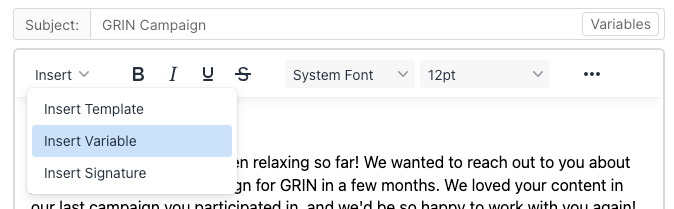
2. Select the Live URL variable.
This will insert the variable directly into your message. When it is sent, it will automatically update into a direct link the creator can use to access their Live Site.
Variables are particularly useful for sending many messages in bulk because variables update according to the message's recipient. You also don't need to manually keep track of or copy and paste the URL yourself since GRIN will update that information for you using the variable.
Copying from the Creator Contact Profile
If you aren't integrated with a communication app or don't want to send a message through one of our integrations for any reason, you can also manually find and copy a creator's Live Site URL from their Creator Contact Profile. To do so:
Navigate to either Contacts > Creators or Contacts > Prospects depending on where your contact is located.
Select the contact's name in the table. This will open their profile.
Navigate to the Live URLs module. Select it to expand it.
Copy the URL you want to send.
Note: If your account has more than one domain, this module lists one Live URL per domain, each with its own label and copy button. They all point to the same creator and differ only in the domain. Copy the one that matches the domain you want that creator to see.
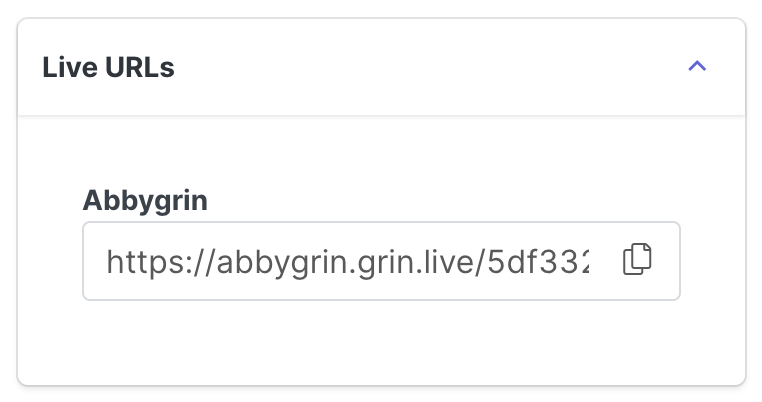
Once you've copied it, you can send it to the creator however you'd like.