
Approving Content
Overview
If you enabled Content Approval for any tasks in your Activation, your creators' deliverables will appear in the For Approval section in your Activation's Content tab. Here, you can review, request changes, and approve content for creators to post.
What You'll Need
At least one task with Content Approval enabled. For more information, check out our article on Creating an Activation.
Note: Content won't appear in For Approval until creators have submitted content via their Live Sites. Once they submit content, you'll receive a notification in GRIN. Creators can learn more about submitting content for approval in our help article Submitting Content for Approval.
How to Do It
1. Navigate to Program > Activations > Your Activation > Content > For Approval. Content that your creators have submitted for approval will appear here.
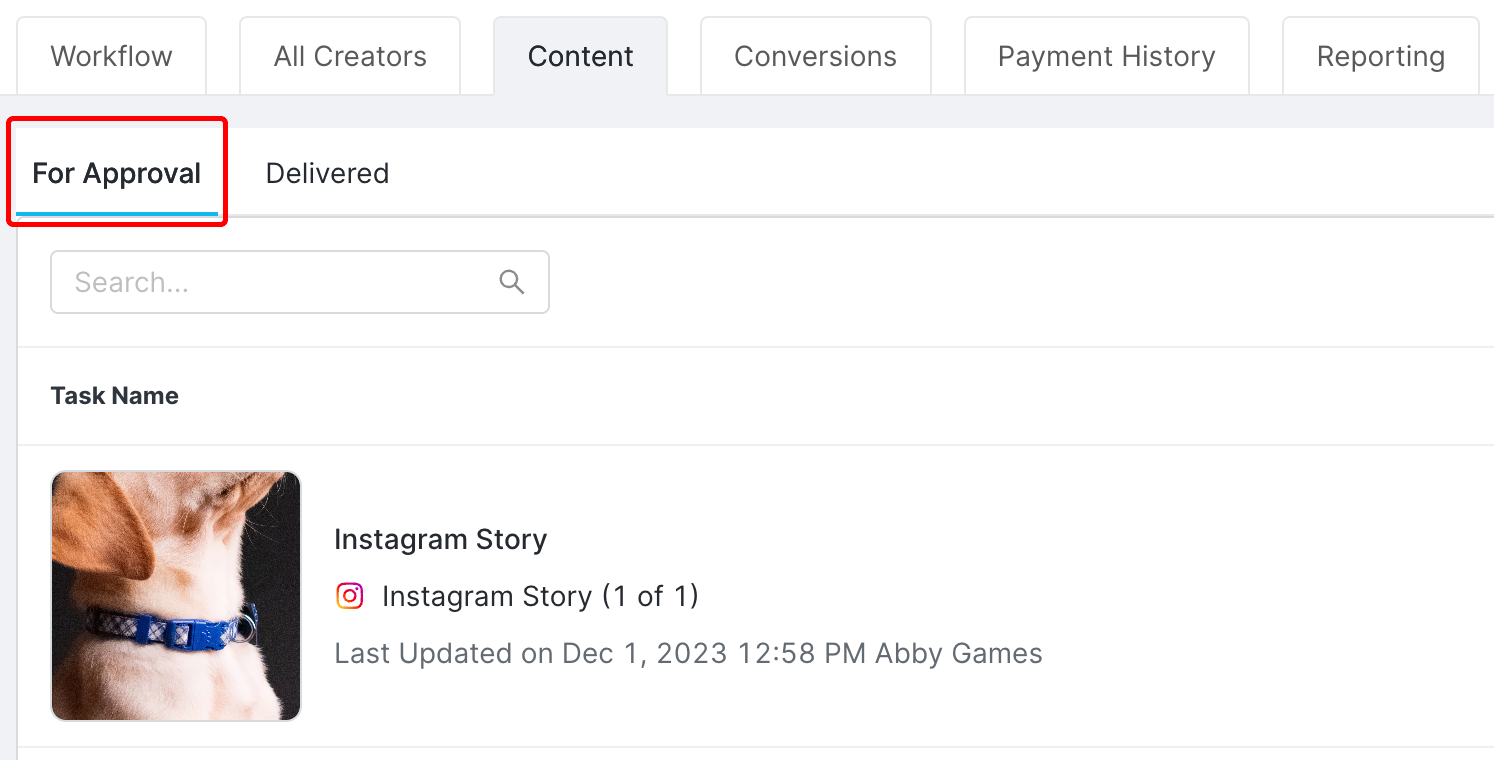
You can view content to approve in the For Approval table.
2. Select a deliverable with the Needs Review status to review it.
3. If there are any changes you'd like to make, select Request Changes at the top right. Otherwise, skip to Step 6.
4. Enter your feedback for your creator in the Request Changes popup and select Send.
5. Once they resubmit content, repeat Steps 1-3.
6. If you're happy with your creator's content, select Approve Content.
Note: You can't unapprove or request changes to content once it's approved. You can always view past submissions, change requests, and approvals from the content's History tab in its side panel.
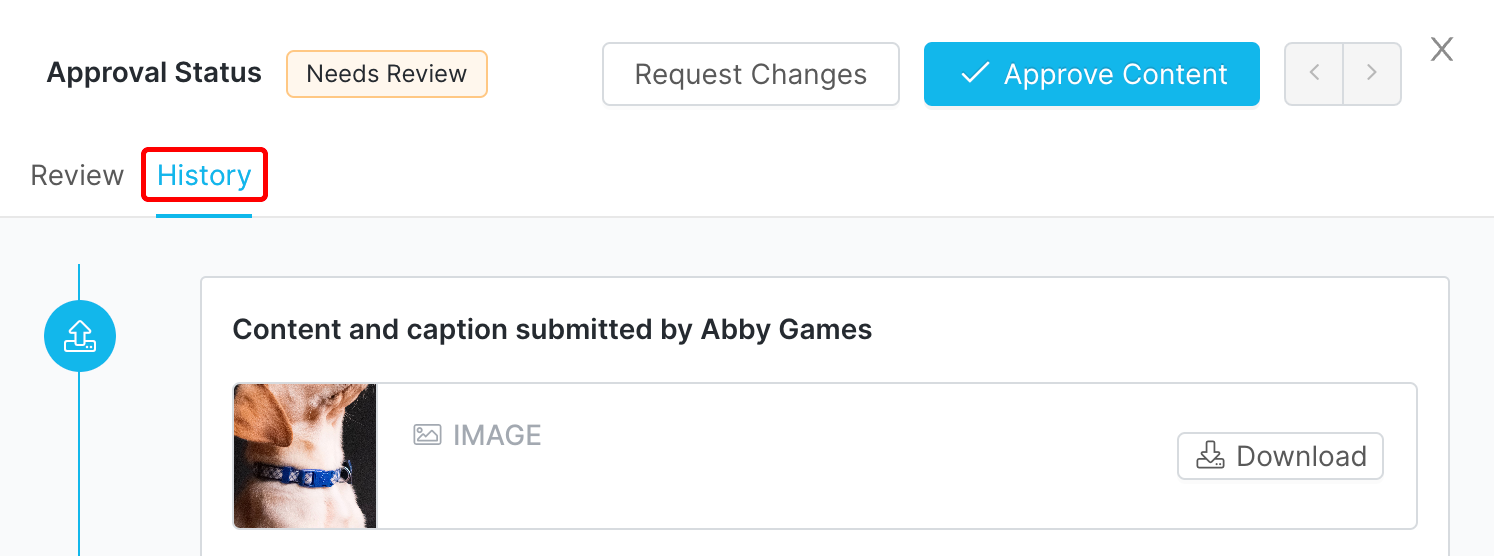
Open the side panel to view details about the content.
7. Enter feedback for your creator, if any, in the Approve this deliverable? popup and select Send.
Conclusion
Once their content is approved, your creator will be notified that they can post. Once they do, that content will appear in the Delivered section of your Content tab.